Getting started
Welcome back, trailblazer!
Follow steps below to quickly walk through metaforce core features!
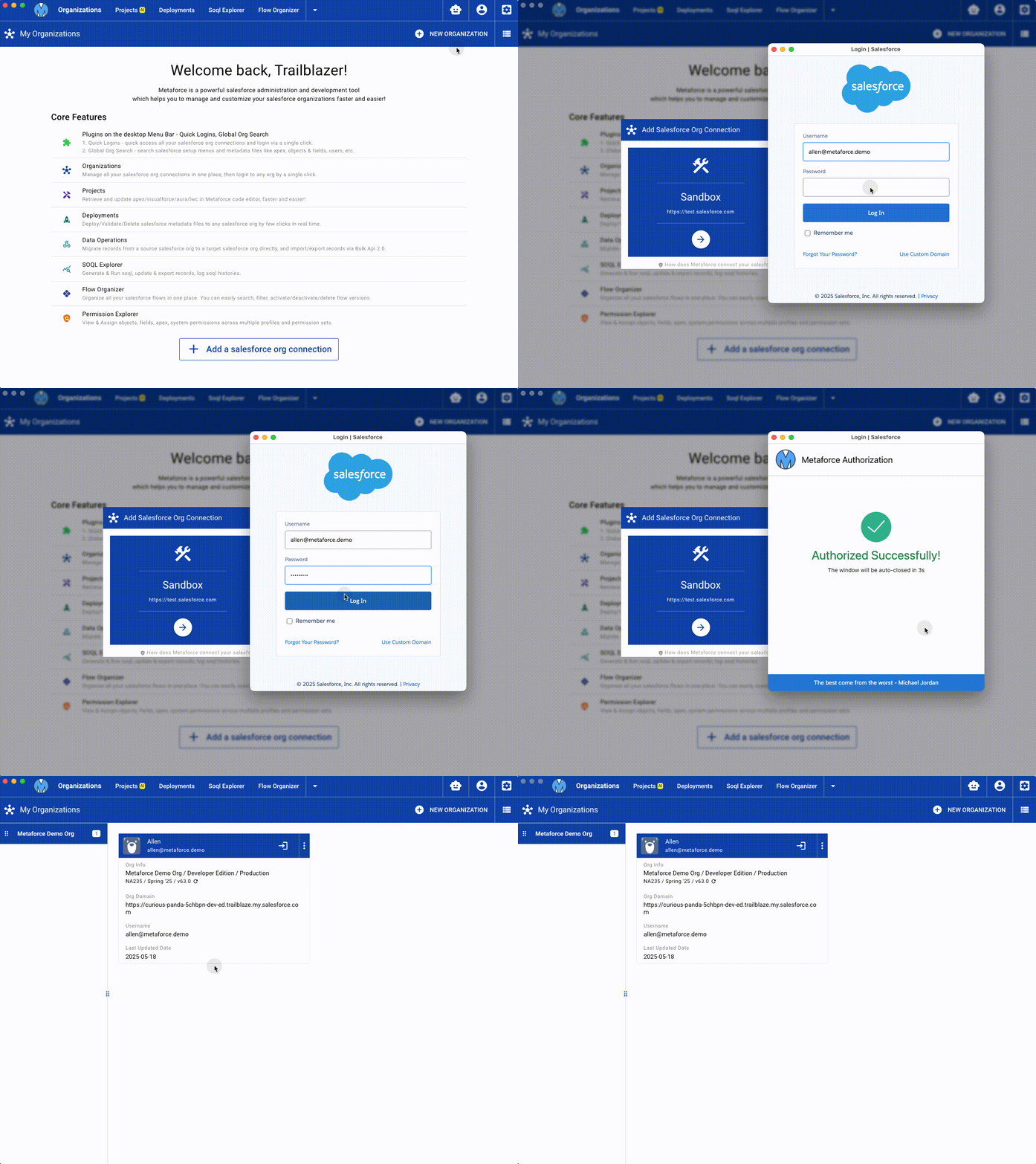
Add a salesforce org
How does metaforce safely manage your salesforce account?
Metaforce authorize your salesforce account securely via Standard Salesforce OAuth Process.
Once your salesforce account is authorized successfully, the credential info will be stored as local files which only metaforce can read.
Open Metaforce app, click
New Organization-->Production.Login your salesforce account from the standard salesforce login popup window.
If you have to login via custom domain, click the "Use Custom Domain" on the standard login page.
If your account MFA is enabled, please confirm your login request from your mobile device. This is only required for your first login in Metaforce.
View your salesforce org details as below.
Try to quickly open your salesforce org in browser by clicking theQuick Loginicon or the actionOpen Org In Browser.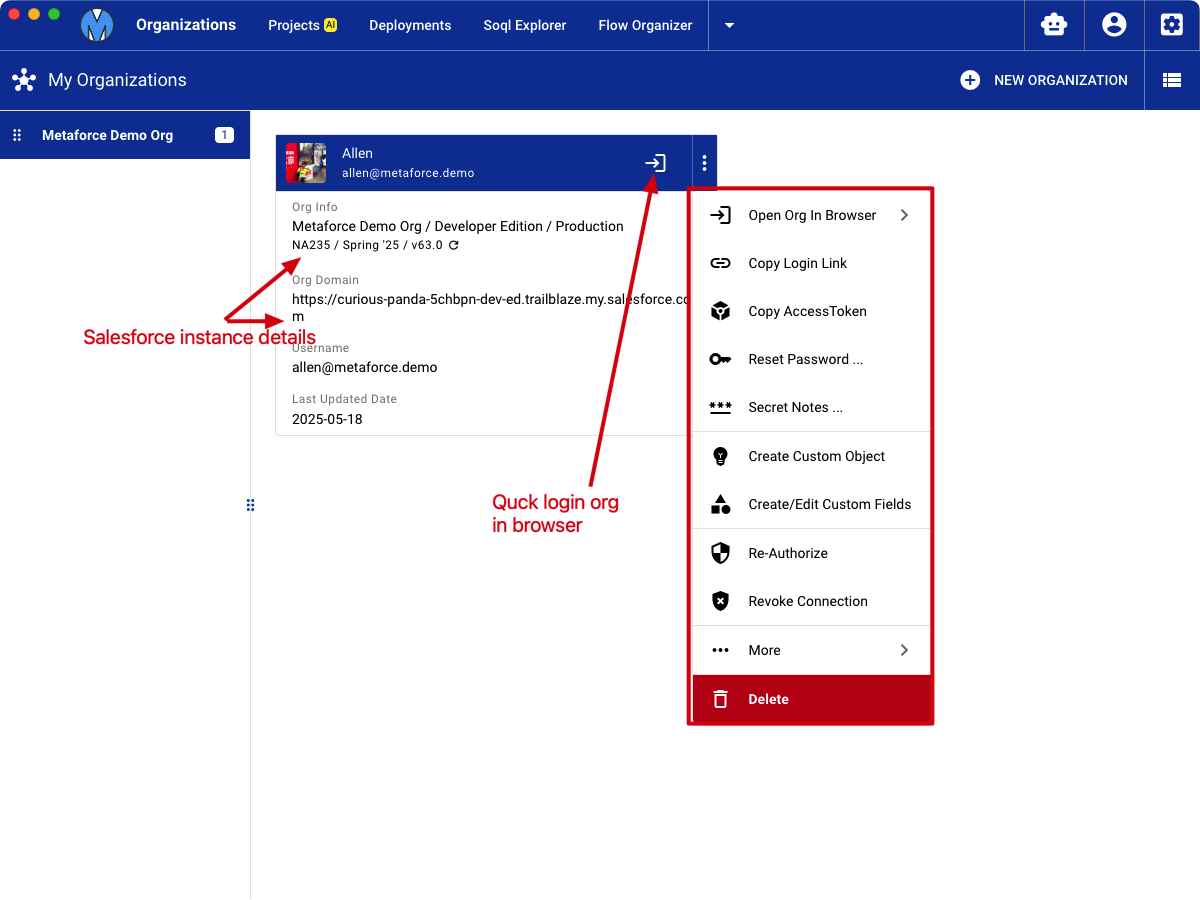
Start apex development
If you have added a salesforce organization in Metaforce, then congrats! You can start explore all core metaforce features.
Now, let's build a project and meet powerful metaforce code editor.
- Go to
Projects-->New Project, popuate project information and save it.- Click
Build Package Xmlto choose metadata components via metaforce package xml builder. - Click
Save & Retrievebutton to retrieve metadata components you selected directly.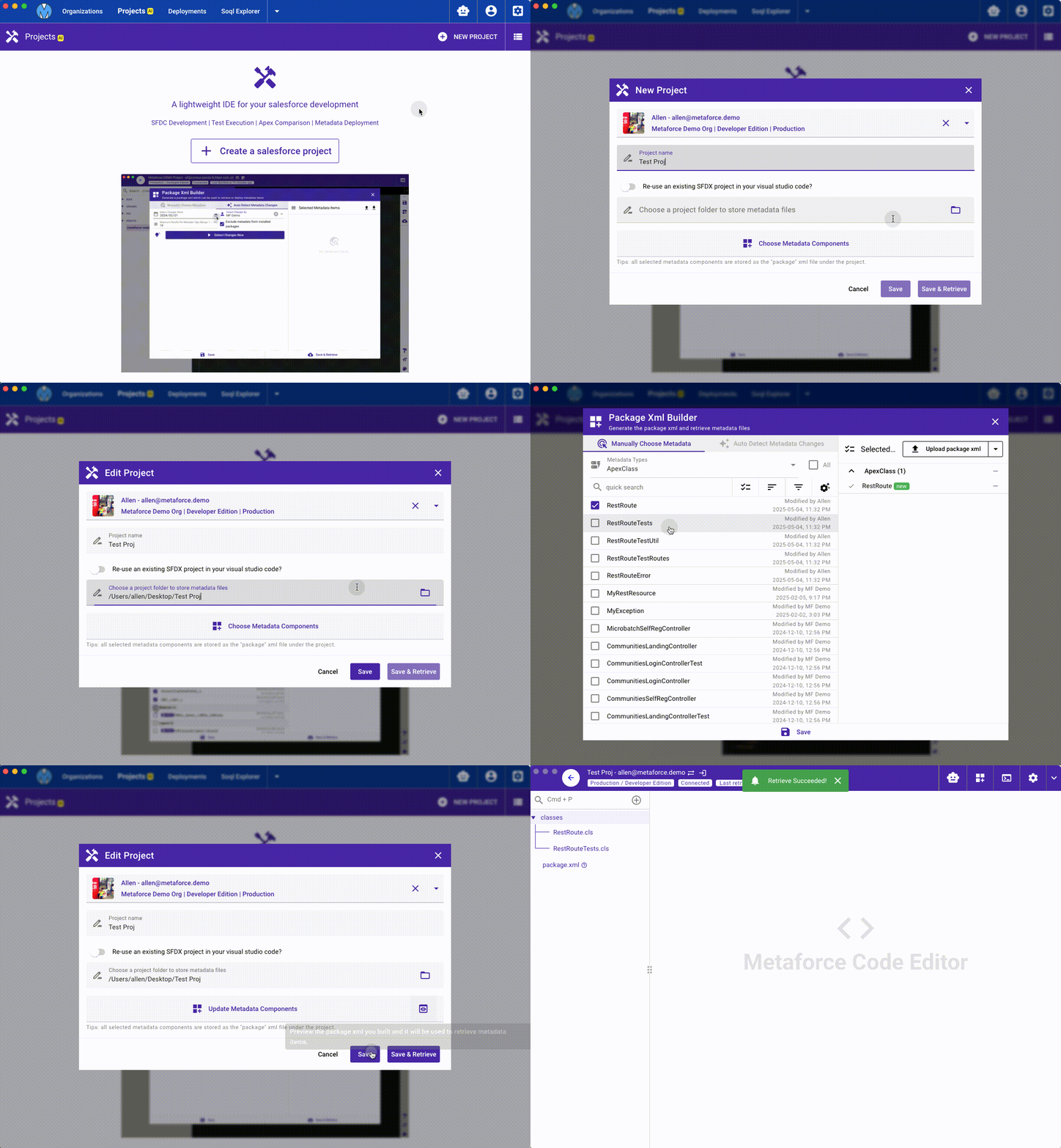
- Click
- Click
Open Code Editoraction on project detail card. Edit and Save your apex code.
In metaforce code editor, you can create/refresh/update/compare apex, lwc, aura, object, fields and other metadata components directly.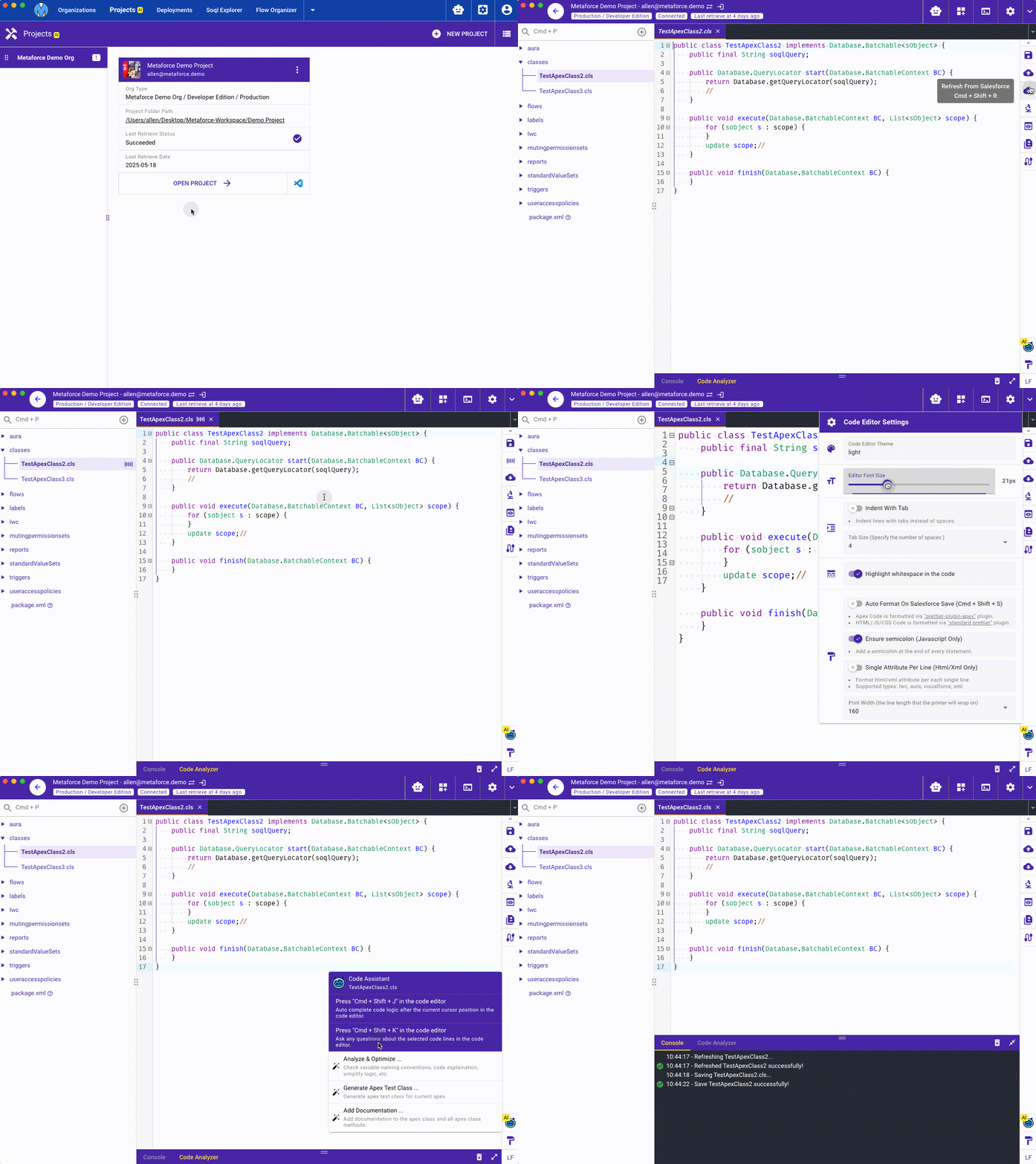
Deploy your changes
In Metaforce, you can quickly deploy your metadata changes from source org to target org in real-time.
Go to
Deployments-->New Deployment, configure a deployment step.- Step 1: populate deployment name and choose source & target orgs.
- Step 2: choose metadata components to be deployed.
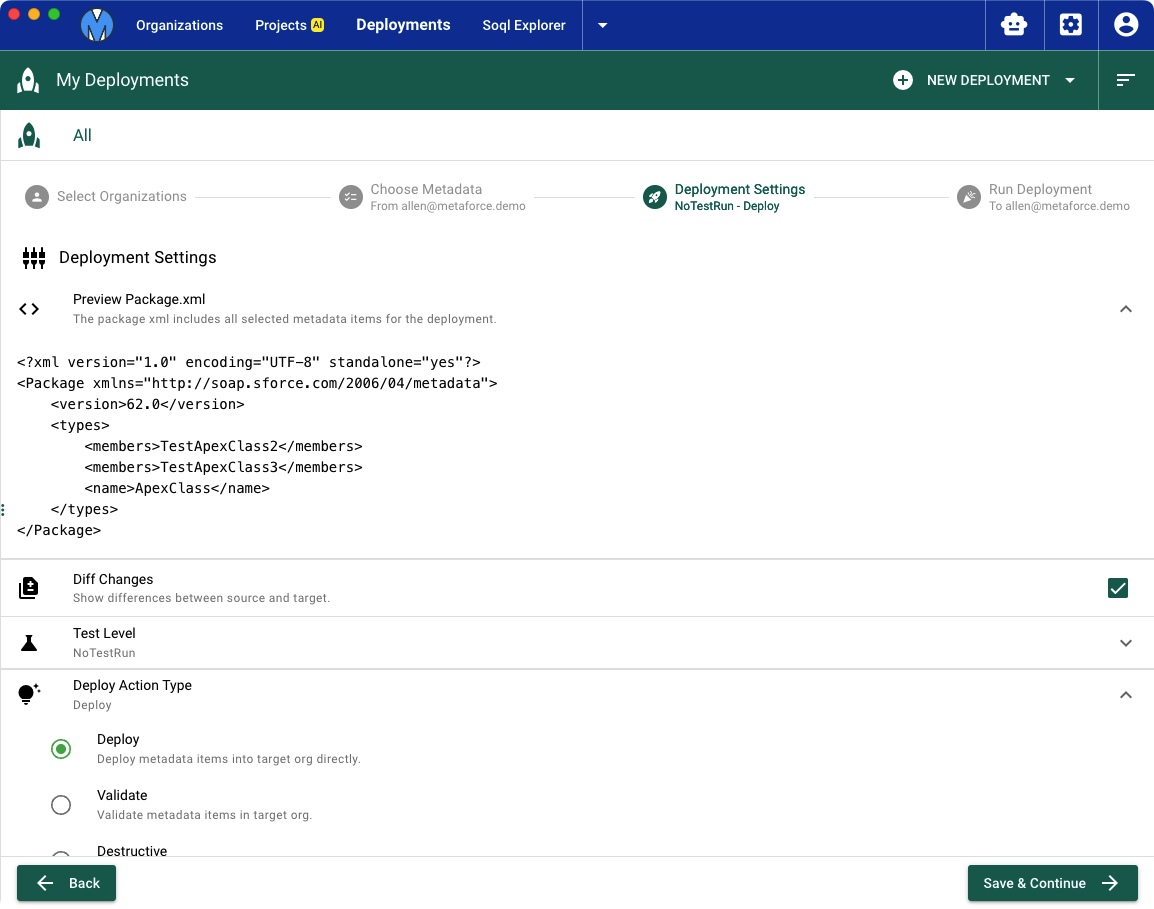
- Step 3: configure deployment options (test level, diff changes, and deployment type.)
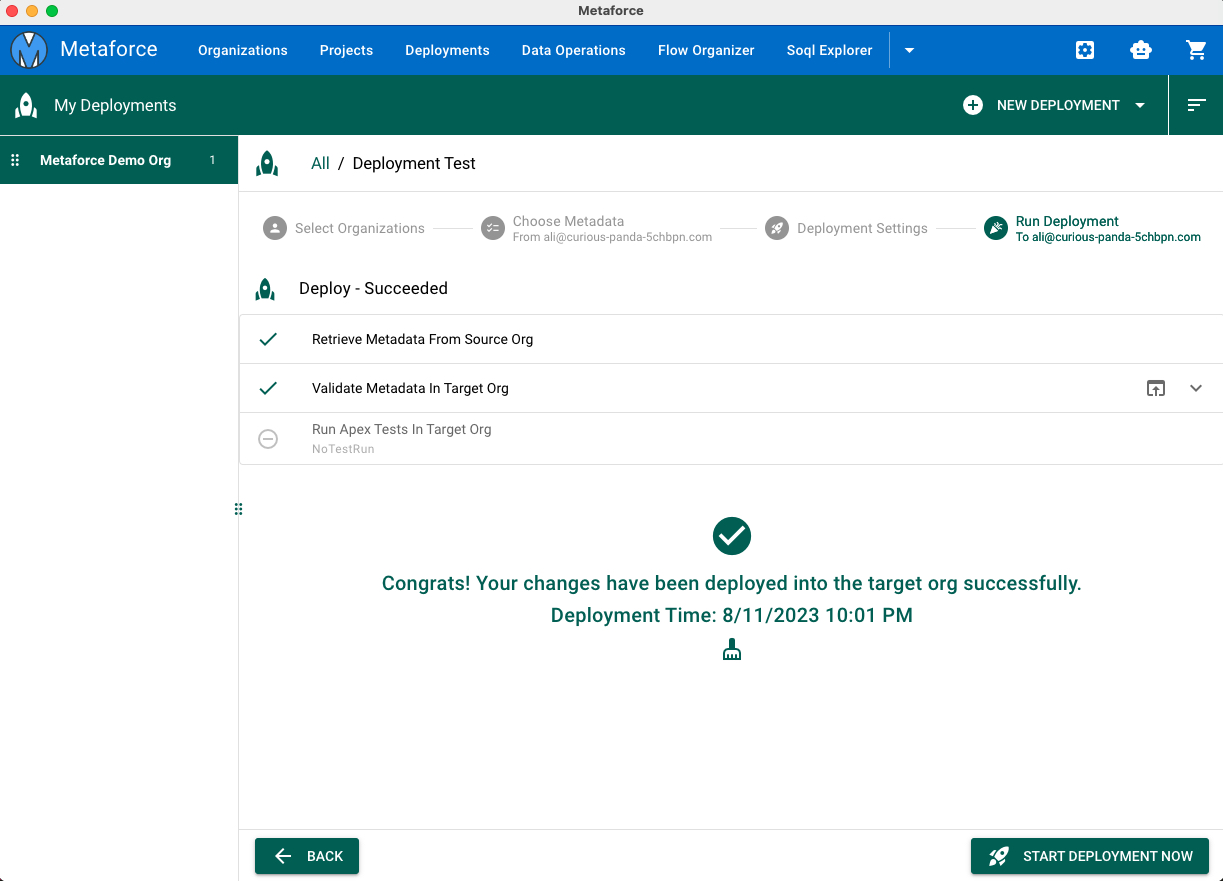
- Step 4: start deployment and monitor deployment status.
Click "Start Deployment Now" and view deployment status.
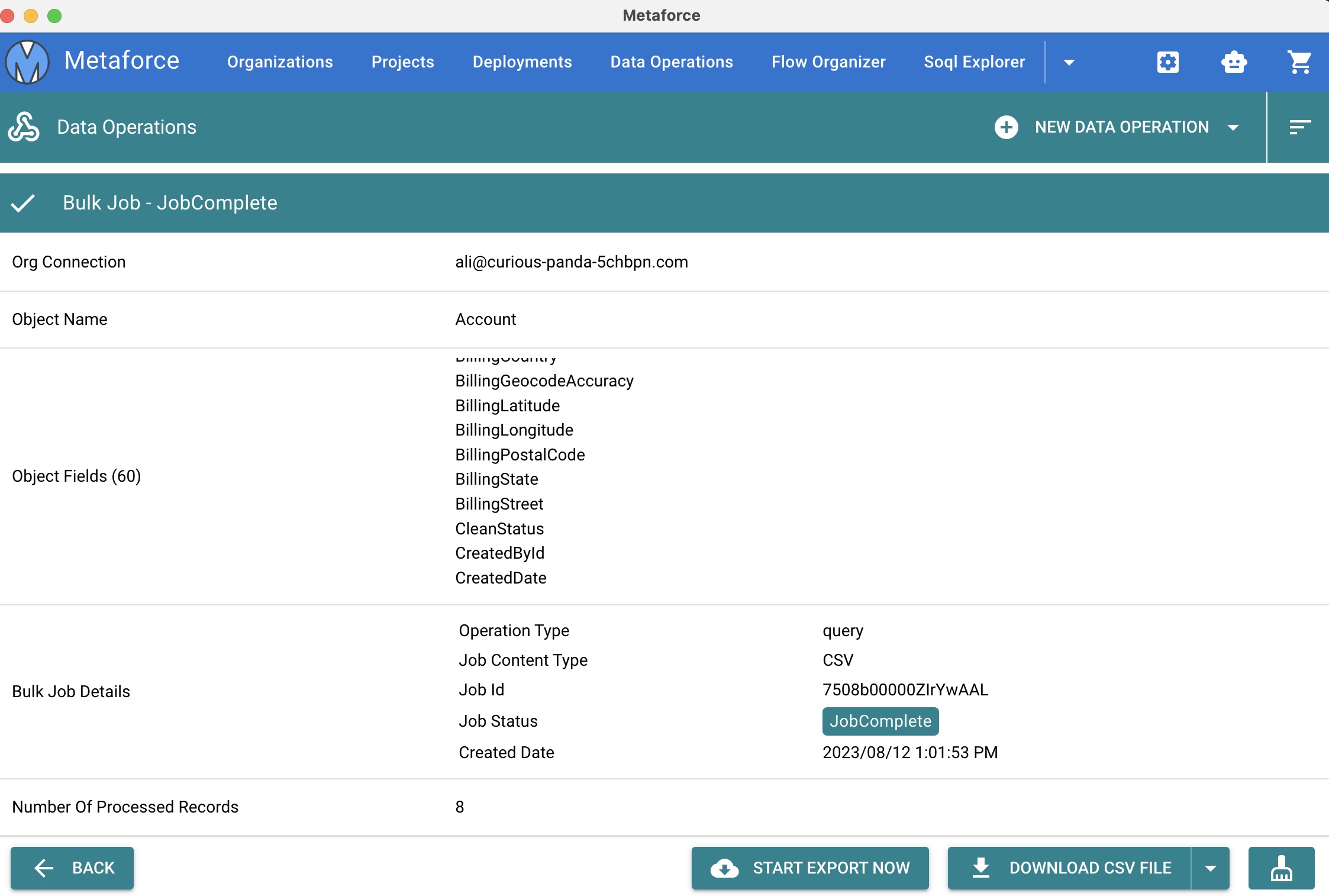
Bulk export account records
- Go to
Data Operation-->New Bulk Export, then Populate the export name, salesforce org, object and fields.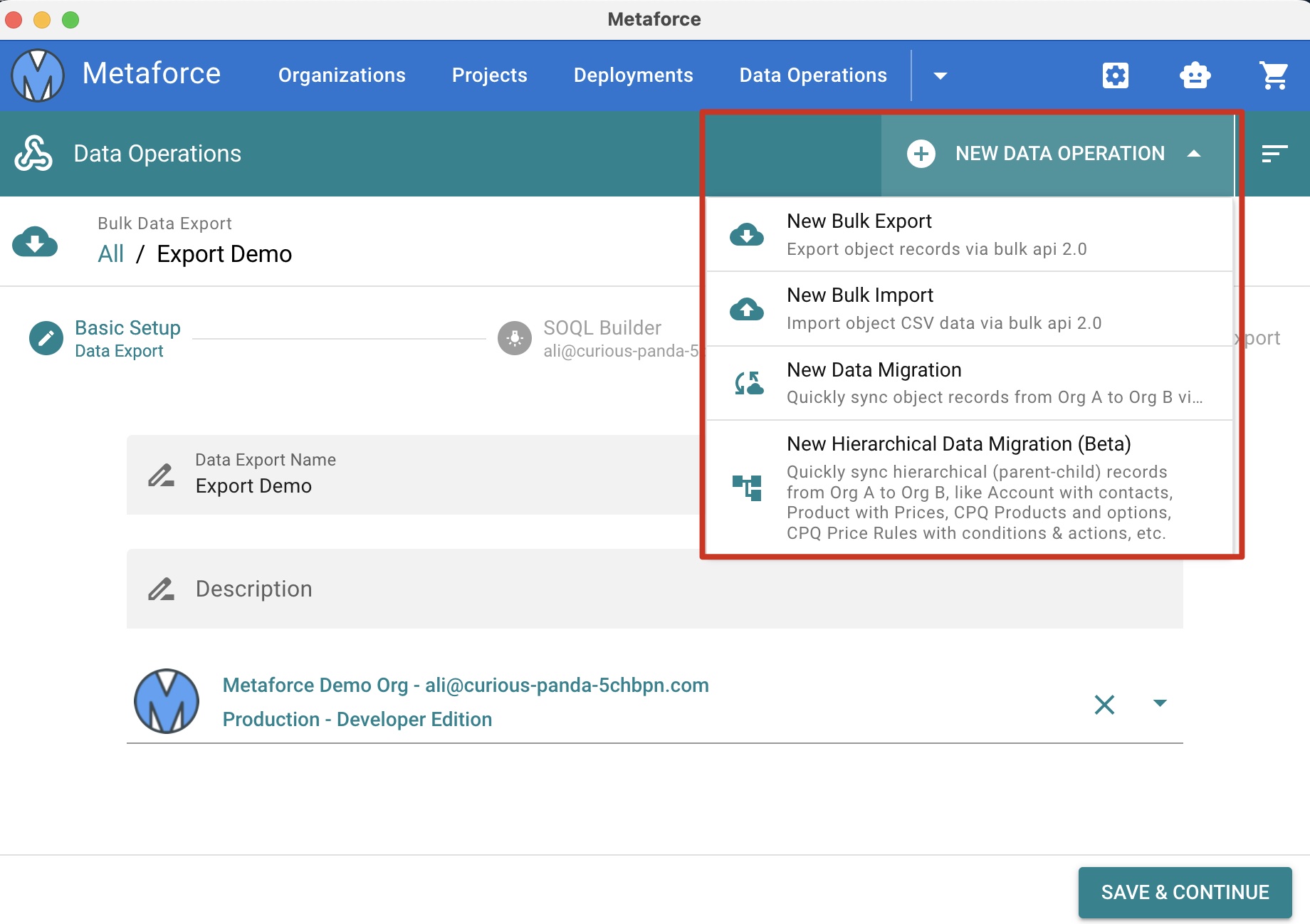
- Review the export summary and start the export, then download the csv file.
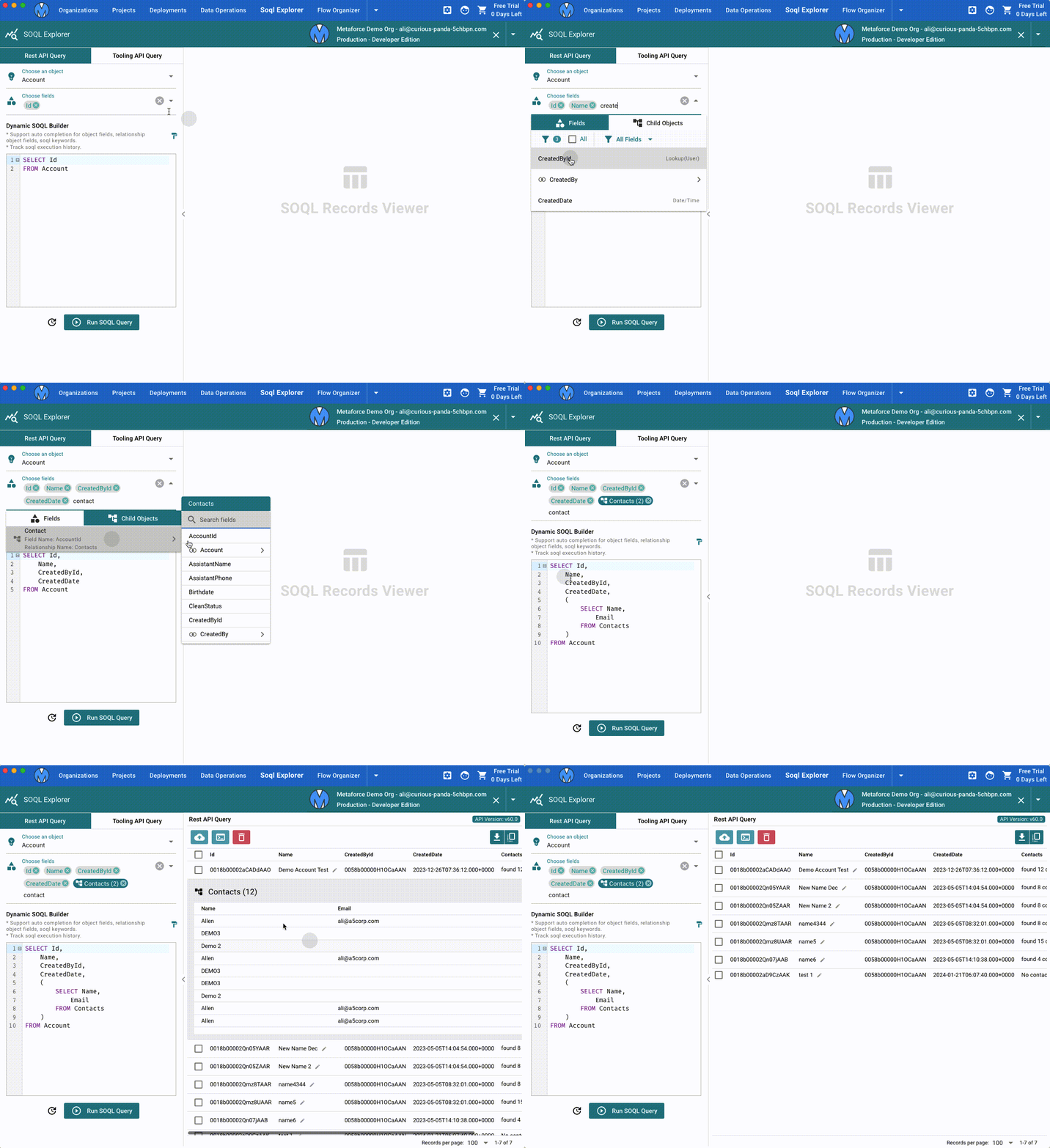
Quickly query and update accounts
- Go to
SOQL Explorer-->Choose an salesforce org connection. - Build your own soql via powerful
SOQL Builder. - Run soql query and handle returned records.