Flow Organizer
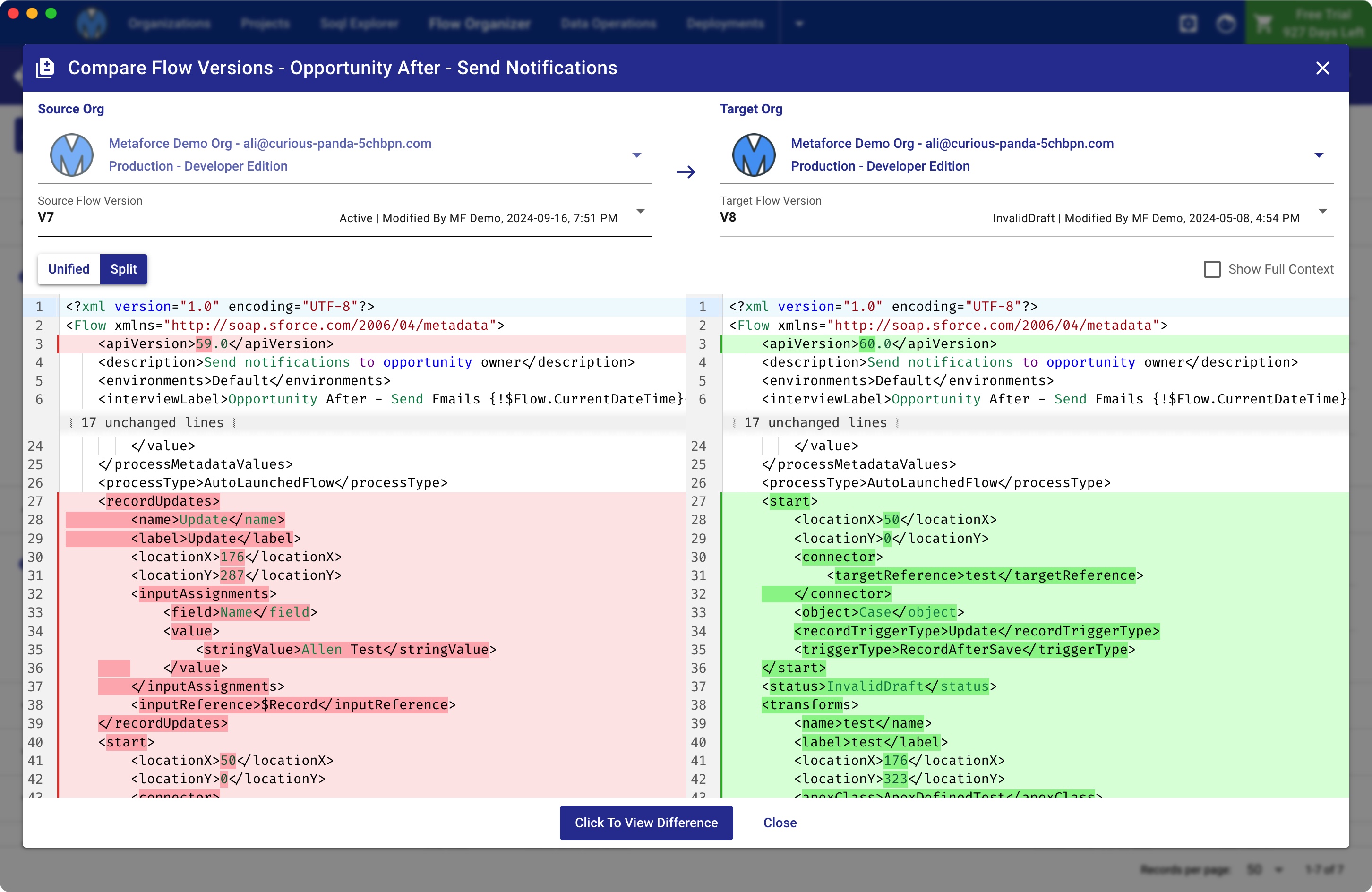
Metaforce Flow Organizer helps you to manage all your flows and flow versions in a single view. Whenever the user opens the flow organizer or clicks the Refresh button at the top, Metaforce fetches latest flow version updates.
Here are flow organizer table columns:
- Flow Name: shows flow name and flow api name both.
- The flow name is a clickable link and it will
redirect to flow detail page in salesforcewhen the user clicks it. - The flow API name is a clickable text and it will
be copied to clipboardso that the user can easily paste the api name for other purposes.
- The flow name is a clickable link and it will
- Flow Status: indicates the flow is active or not.
- Type, there are 4 common flow types:
- AutoLaunchedFlow
- Screen Flow
- Record Triggered Flow
- Process Builder
- Object: the object name where the record triggered flow is based on.
- Trigger Type: indicates when a record trigger flow get triggered.
- Last Modified: last modified user and date.
All columns can be sorted by clicking the column header. By default, the table is sorted by Last Modified Date(descending).
Actions On The Flow Version
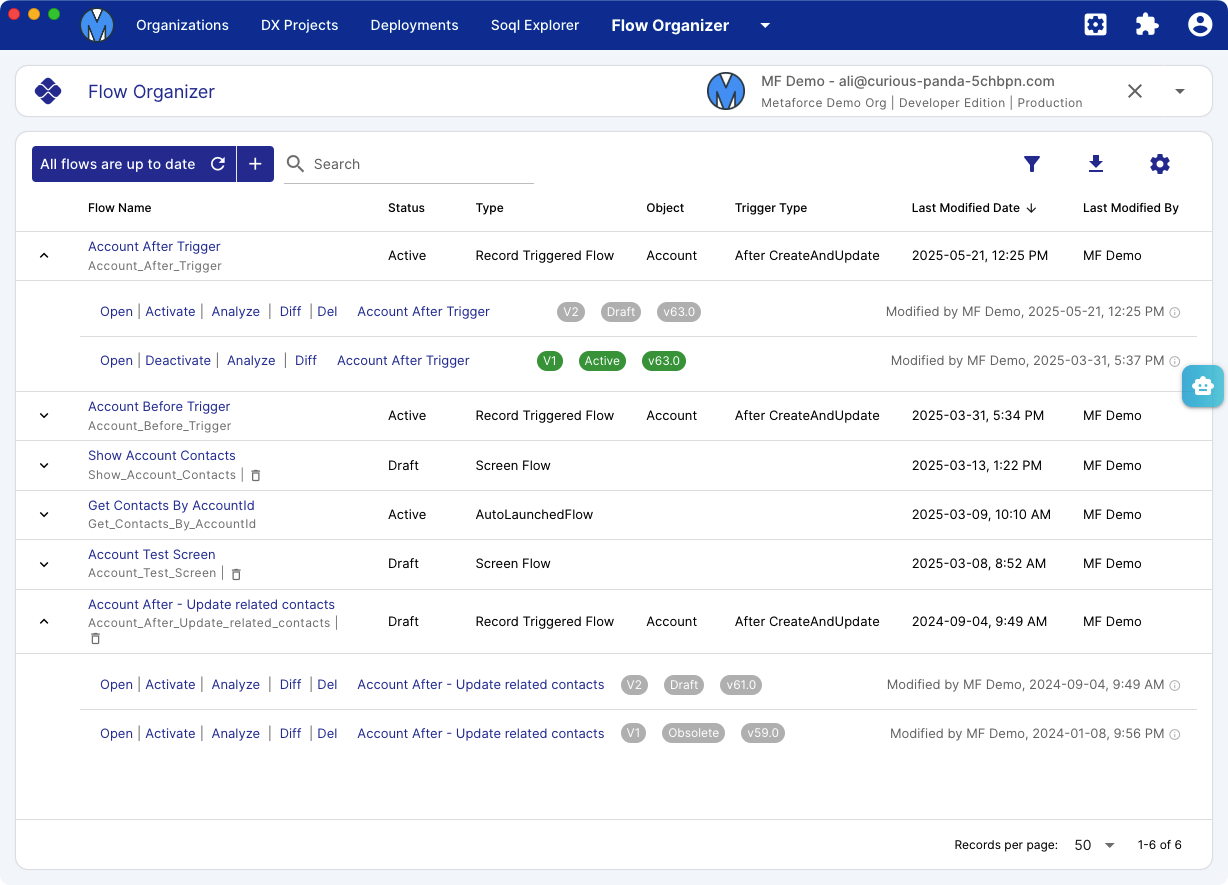
By default, the most recent 5 flow versions will be fetched for the display. If the flow has many old versions, click the "Retrieve all flow versions" button to list all of them.
Tips: click "Last Modified Date" column header to keep the latest updated flow on the top, then you can easily find the flow you're working on.
Avaiable flow actions:
Open: open current flow version and redirects to the flow builder in the salesforce.Active/Deactivate: toggle flow status.Debug: open the debug page for current flow version.Diff: compare current flow version with a specified flow version in current or another salesforce org.Del: remove current flow version.
Flow Version Diff View
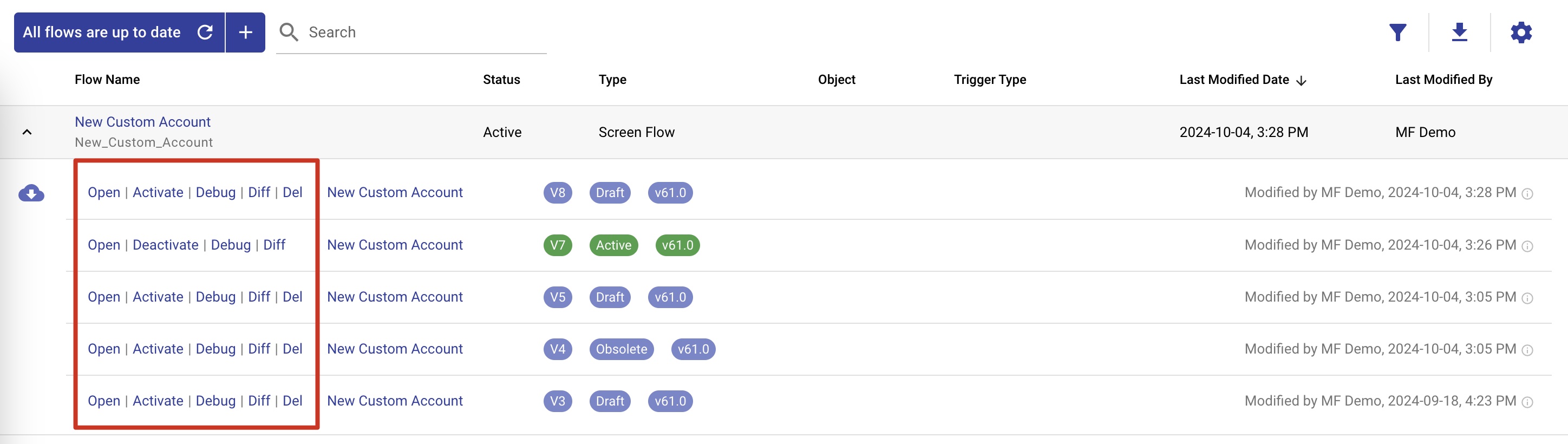
The "Diff" action lets users easily see the differences between the source and target flow versions. They can choose a different version of the same flow for the target, or even pick a flow version from a different org.