DX Projects
What's Metaforce DX Project?
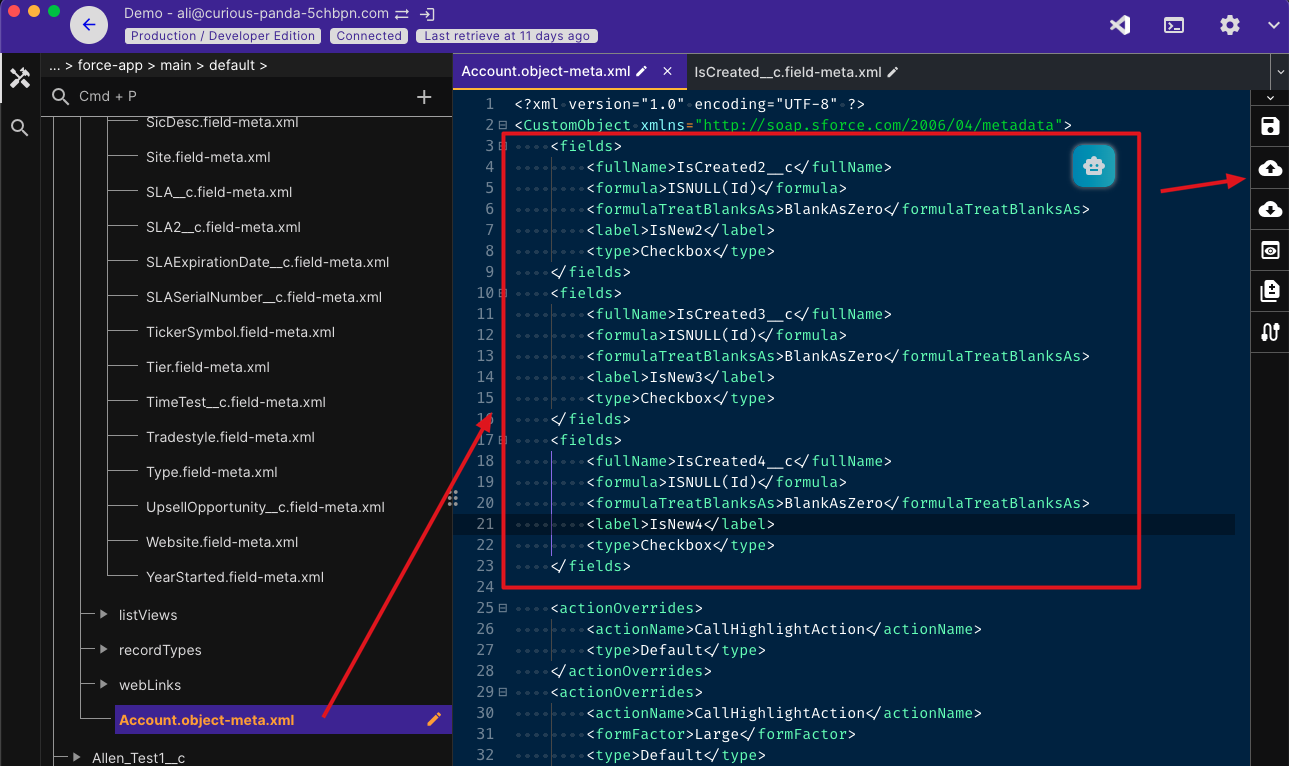
Metaforce DX Project is a lightweight IDE for your salesforce development. In the project, you can easily build your metadata manifest, retrieve metadata files, customize your code, and even change metadata file directly.
- 1️⃣ Fully aligned with Salesforce DX projects in VS Code
- 2️⃣ Easily manage and import all your DX projects in Metaforce
- 3️⃣ Enjoy the best of both worlds — Metaforce’s lightweight IDE and VS Code’s powerful capabilities
Metaforce Code Editor
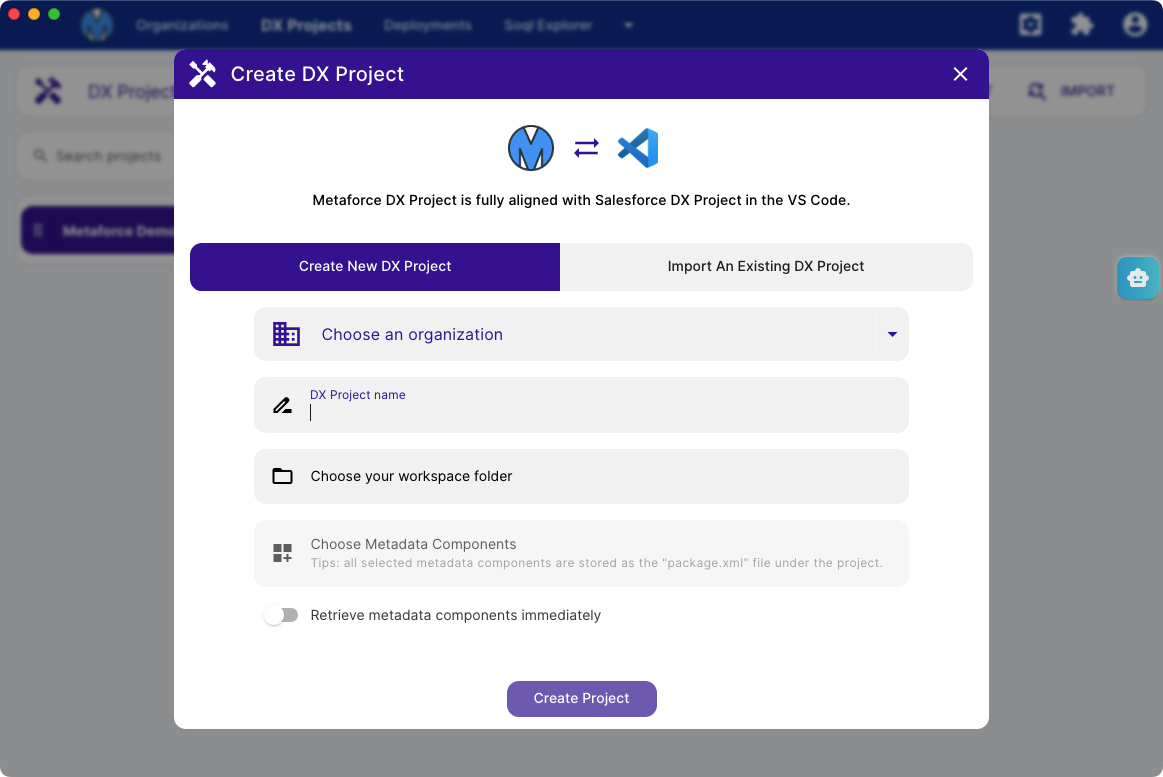
- Project Header - includes org connection and its status, org switch button, org login button, package xml builder, code editor settings.
- Project Sidebar - shows all files under the project.
- Project Code Editor - view and edit salesforce files.
- Project Action bar - all available actions for the code editor.
Code Editor & Settings
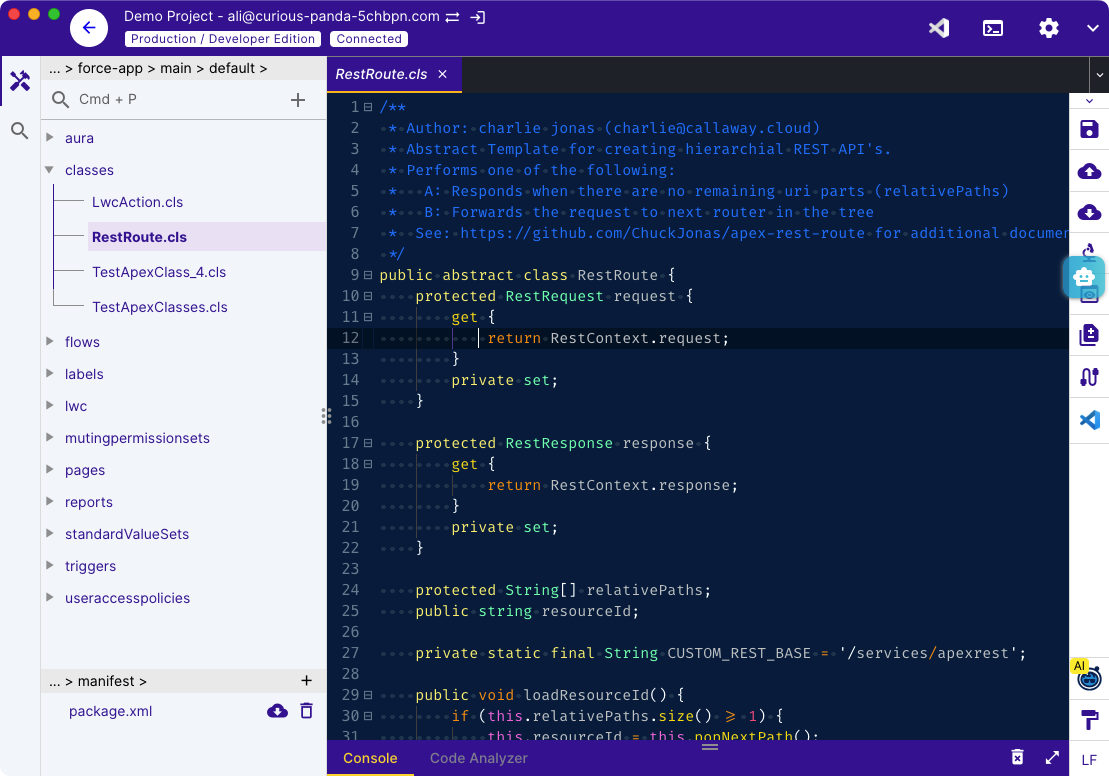
- Auto apex completion.
- Various editor themes.
- Common code editor settings, like themes, font size, etc.
Code Editor Actions
In metaforce code editor, you can view, update, save, and refresh your salesforce metadata directly which includes apex classes, aura, lwc, custom objects, custom fields, email templates, etc.
Compare/Diff Metadata
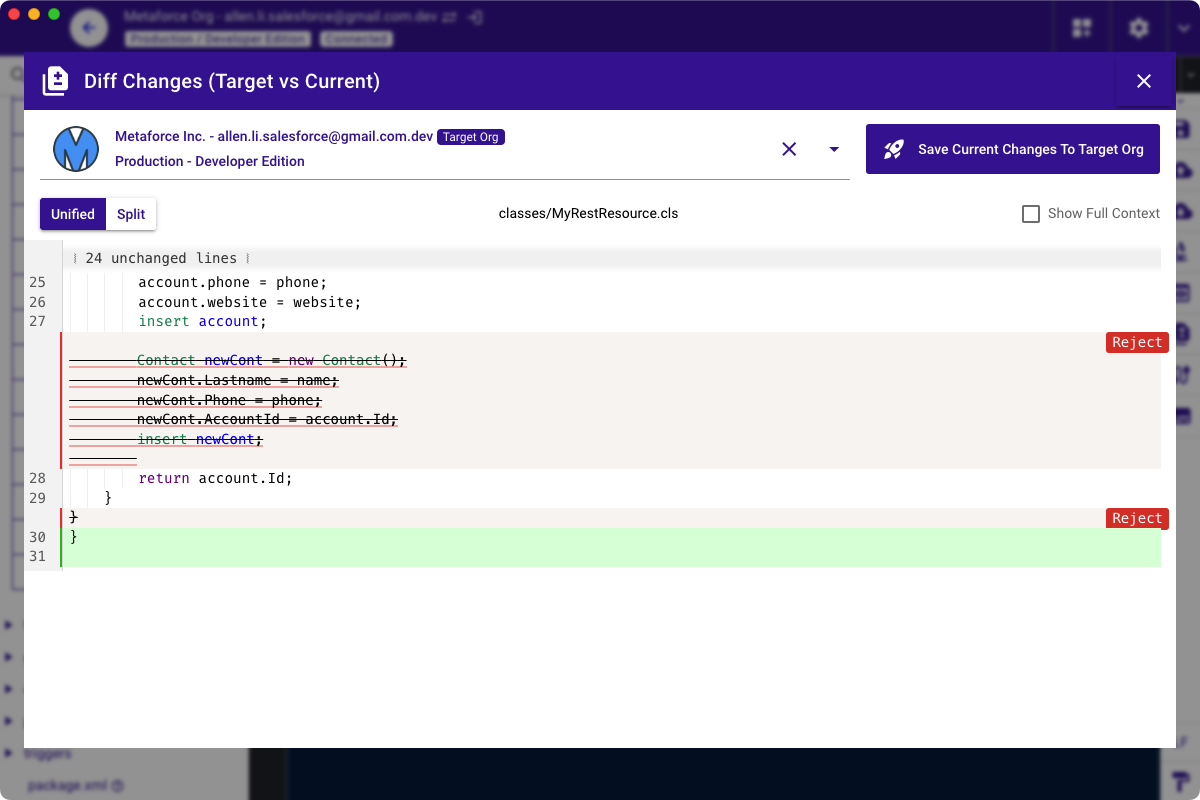
- Compare your apex code or salesforce metadata with a selected target org.
- New improved & re-designed DIFF view.
- Pick particular changes you need and save to your target org directly.
LF & CRLF
Show the line ending of current code content. Click to switch the line ending between LF and CRLF.
Format Code
- For ApexCode/LWC/Aura, they're formatted via the most popular plugin: prettier-plugin-apex
- For javascript/Xml/Css, they're formatted via prettier plugin: prettier-plugin
Shortcut for windows: Shift + Alt + F
Shortcut for mac: Shift + Option + F
Create Apex/Aura/LWC/Object/Field
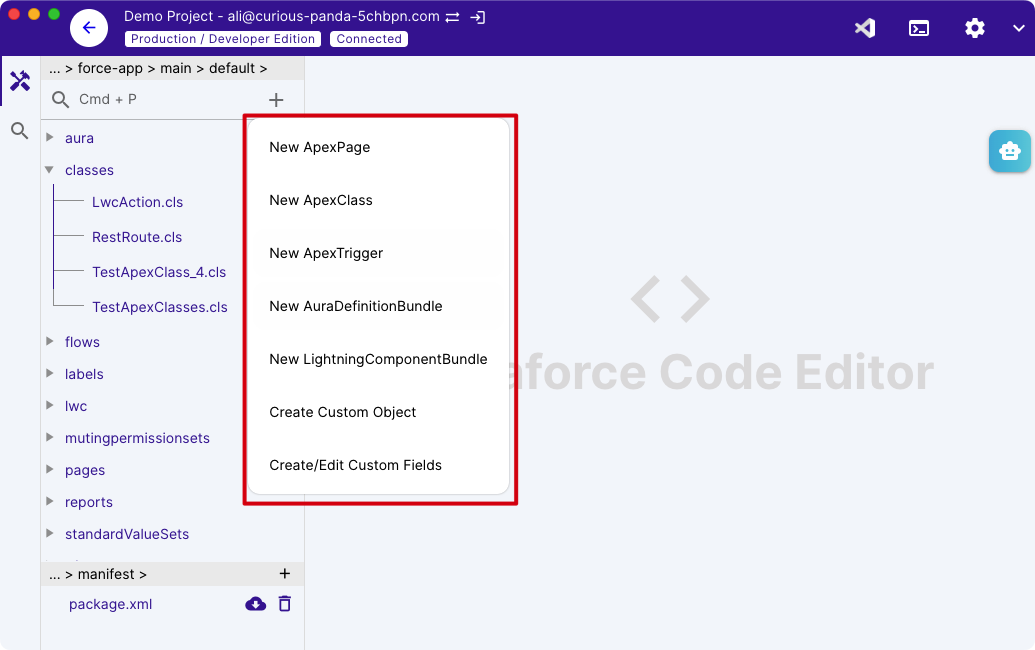
In metaforce project, you can easily create new metadata item as below, like new visualforce page, apex class, etc.
Manifest XML Builder
To create/update a package xml, use the powerful Manifest XML Builder to quickly pick any metadata components in seconds. It supports 100+ metadata types, and you can easily search, sort, add metadata items by few clicks.
What's the manifest xml
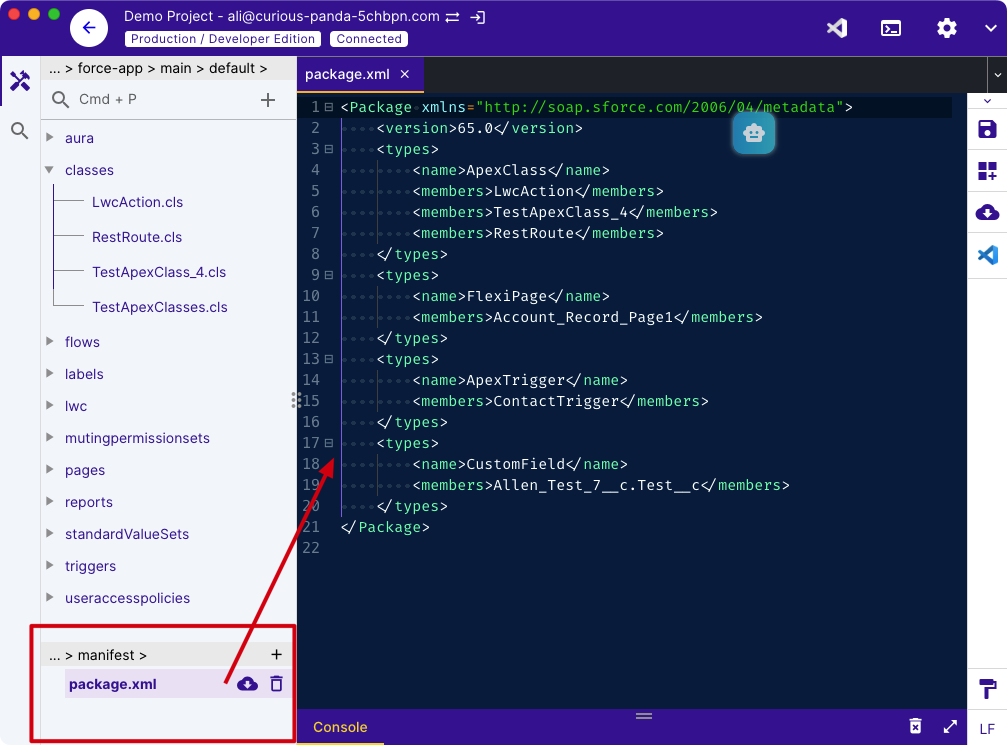
By default, the manifest XML is also known as the "package.xml". In salesforce, the package.xml file defines the components that you’re trying to retrieve or deploy. Metaforce project also use package.xml to retrieve metadata components under the project. It's auto created by default when you add the project.
Here is a simple package xml file:
<?xml version="1.0" encoding="UTF-8"?>
<Package xmlns="http://soap.sforce.com/2006/04/metadata">
    <types>
        <members>MyCustomObject__c</members>
        <name>CustomObject</name>
    </types>
    <types>
        <members>*</members>
        <name>CustomTab</name>
    </types>
    <types>
        <members>Standard</members>
        <name>Profile</name>
    </types>
    <version>58.0</version>
</Package>
Add metadata Manually
The "Package Xml Builder" helps you to add metadata items by few clicks. It's similar to the salesforce change set but much easier and faster.
You can filter, sort metadata items by choose a particular metadata type, then find metadata items by searching some keywords directly. 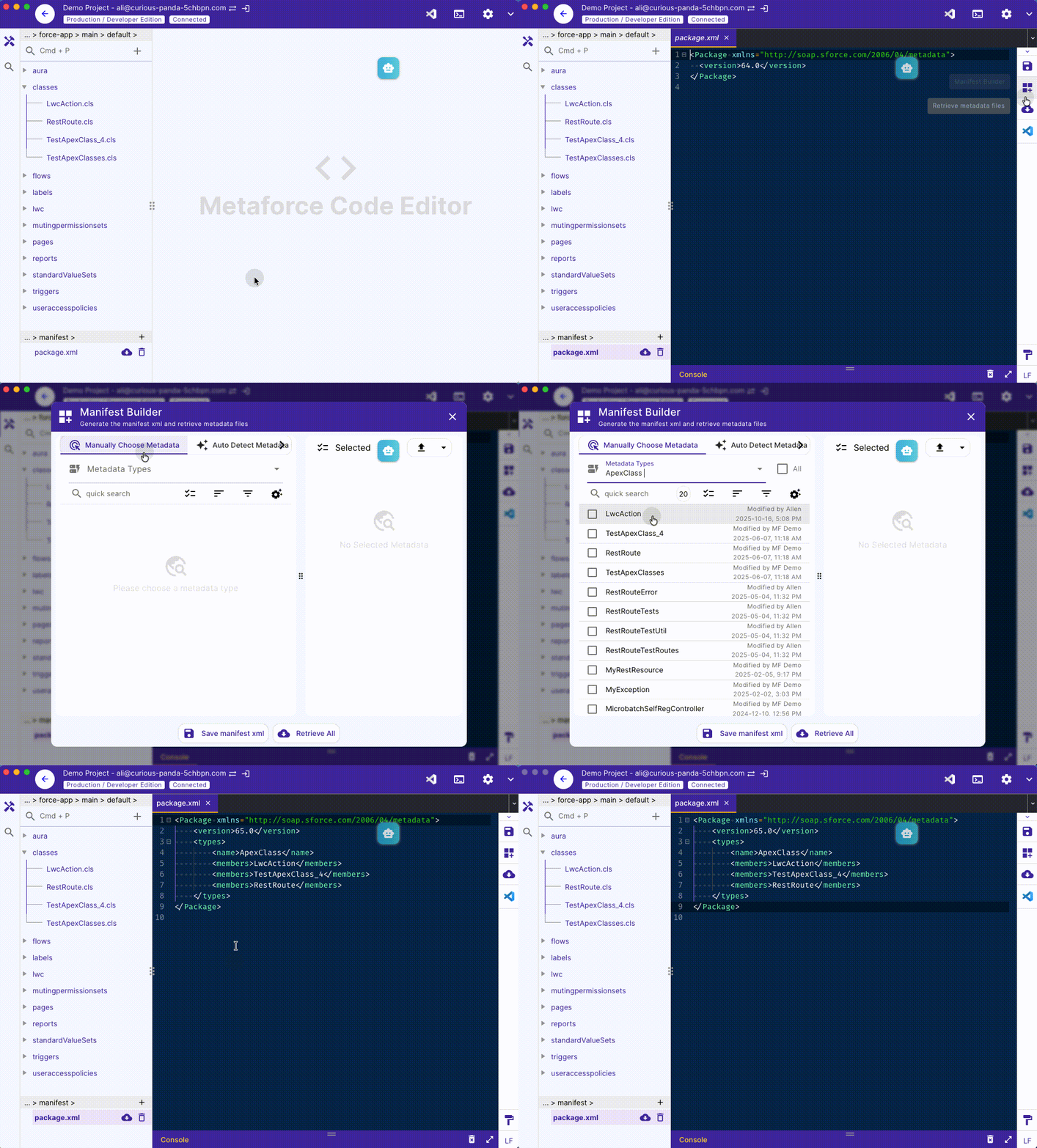
Auto detect metadata changes
If you have too many changes recently and coudn't recall them, will you go back to salesforce and review all your changes from the beginning? Of course, you don't have to do that!
The "Package Xml Builder" can detect all changes from a specified user, based on the date you choose. It scans 100+ metadata types and find changes. 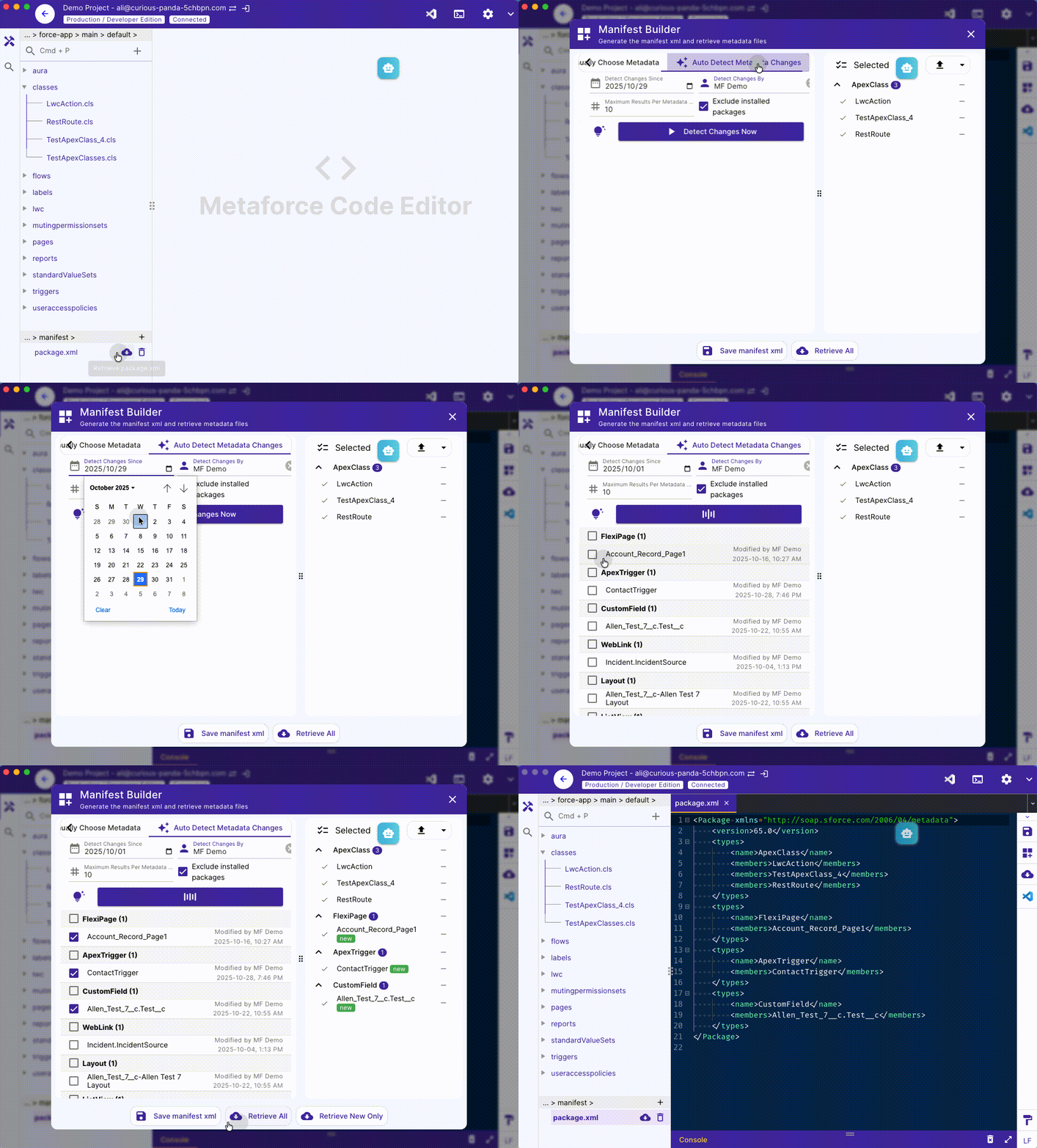
Notes: the usage of
package.xmlis totally same with thepackage.xml.
- The package.xml file is
auto generatedwhile you create a new project. - The package.xml file can be
updated via Package XML Builder. - The package.xml file can be
retrieved to refresh its all components.
Common Scenarios
Bulk create custom fields
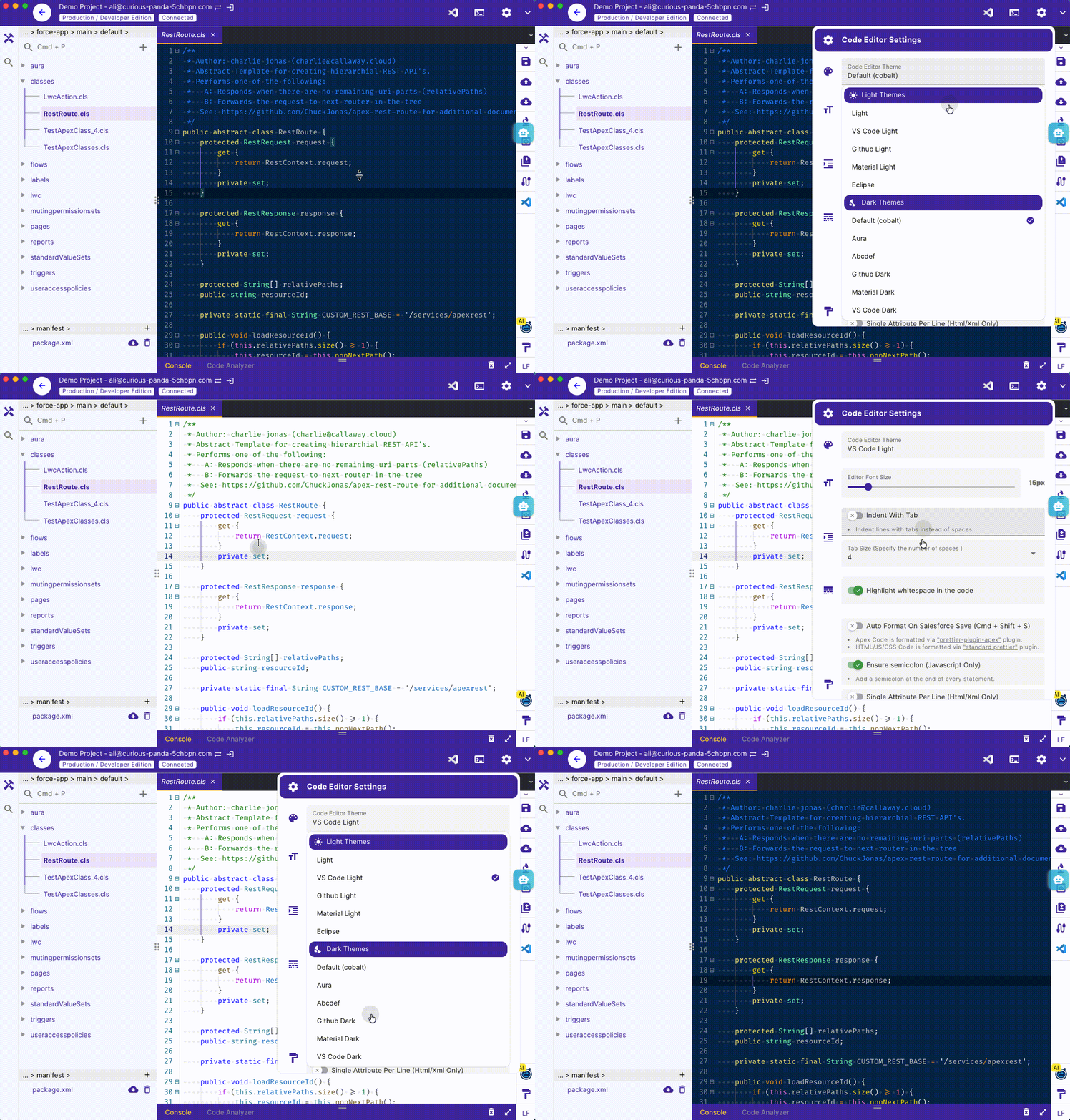
In Metaforce DX Project, you can easily create custom fields in bulk by updating custom object xml directly. This way, you can create multiple custom fields at once without going to the salesforce setup.
Approach #1 - Clone an existing custom field as a new custom field
- Choose an existing custom object via the Manifest XML Builder and retrieve it.
- The custom object and its custom fields will be added to the project.
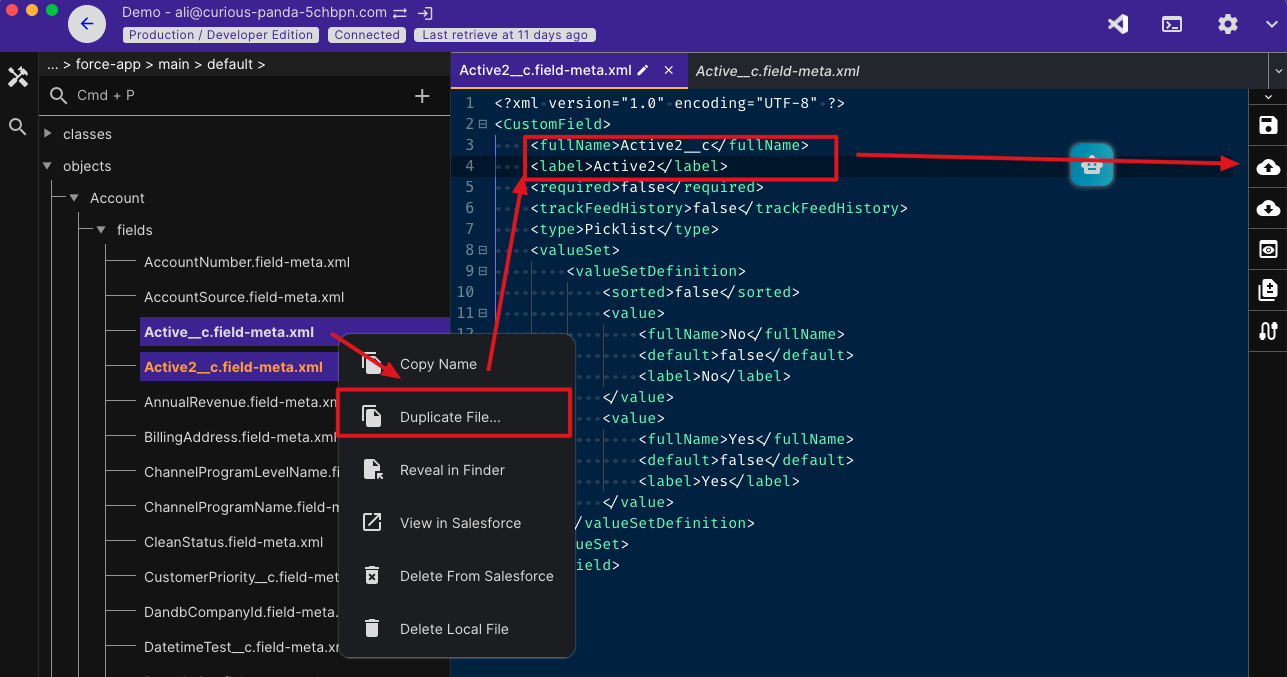
- Find an existing custom field you want to clone and right-click on it, then choose "Duplicate File..." from the context menu.
- Rename the file with new custom field api name.
- In the new custom field xml file, update the field api name, label, and other settings as needed.
- Save the new custom field to Salesforce.
After the field creation, you can go to the
Permission Explorerto assign the field to the appropriate profiles or permission sets.
Approach #2 - Bulk add custom fields in object XML
- Choose an existing custom object via the Manifest XML Builder and retrieve it.
- The custom object and its custom fields will be added to the project.
- Open an existing custom field you want to clone, copy its xml content.
- Add new custom fields xml under the
<fields>section in the custom object xml file. - Repeat step 3 and 4 for each new custom field you want to add.
- Save the custom object xml file to Salesforce.
After the field creation, you can go to the
Permission Explorerto assign the field to the appropriate profiles or permission sets.