
Backup & Device Migration
Metaforce is a local-first desktop application that stores your Salesforce organization tokens, SOQL query worksheets, and preferences directly on your computer. To ensure your configurations are never lost and to enable seamless transitions between multiple work computers, Metaforce provides a unified Backup & Device Migration suite supporting both Cloud Sync and Local Archives with optional AES-256 end-to-end encryption.
To open the backup console, click App Settings → Backup & Restore from the top navigation bar.
1. Metaforce Cloud Migration
Cloud Migration enables instant backup and device-to-device transfer through your Metaforce account without handling intermediate files manually.
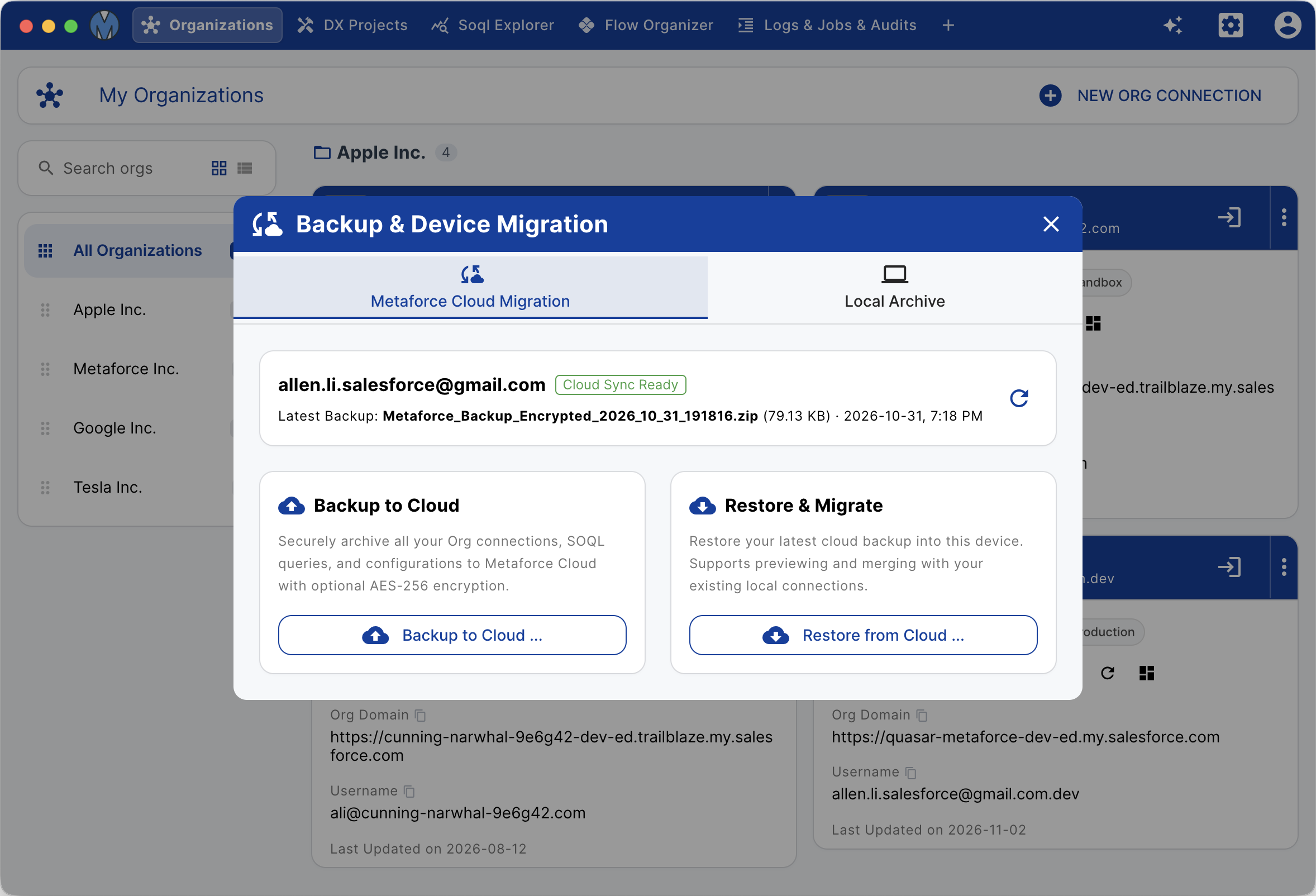
Requirements & Cloud Sync Status
- Requires signing into your Metaforce account.
- The console displays your account email and a Cloud Sync Ready badge.
- Displays the metadata of your latest cloud backup (filename, file size, and timestamp).
Core Cloud Actions:
- Backup to Cloud: Securely packages all connected Salesforce organizations, query history, and application settings, uploading them to Metaforce Cloud with a single click.
- Restore & Migrate: Pulls down your latest cloud backup archive and launches the guided inspection and merge workflow on your new computer.
End-to-End AES-256 Encryption (Optional)
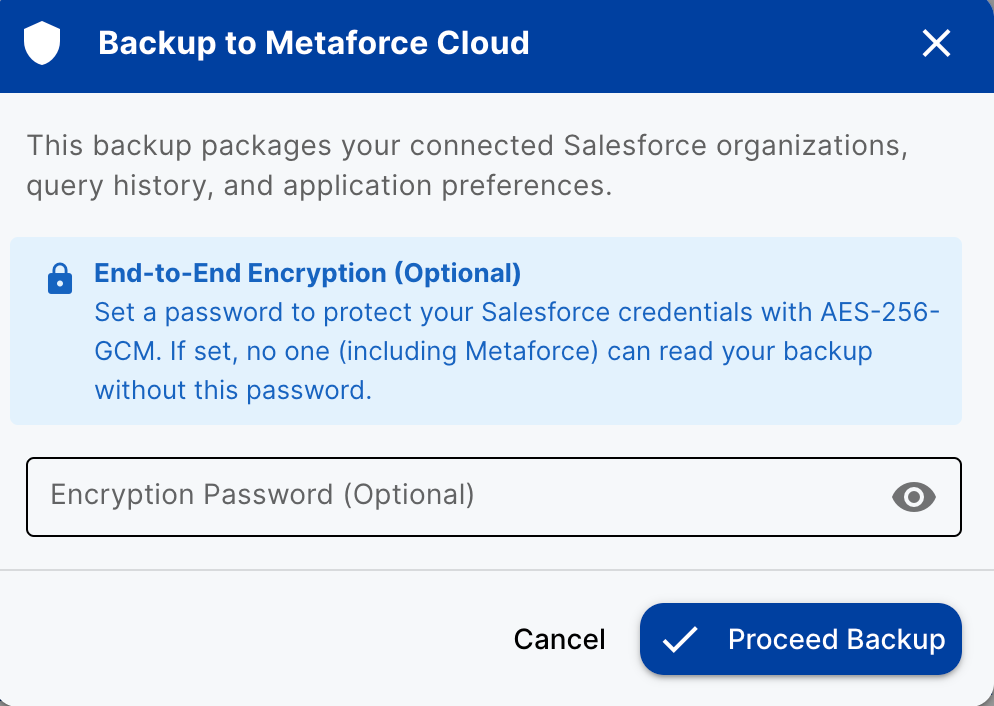
When initiating a backup, you can optionally set an encryption password. If set, your credentials and configurations are encrypted locally with AES-256-GCM before transmission. No one — including Metaforce servers — can decrypt or view your credentials without this password.
2. Local Archive & Automatic Backups
If you prefer offline storage or corporate policy restricts cloud sync, the Local Archive tab provides complete offline backup and restore capabilities.
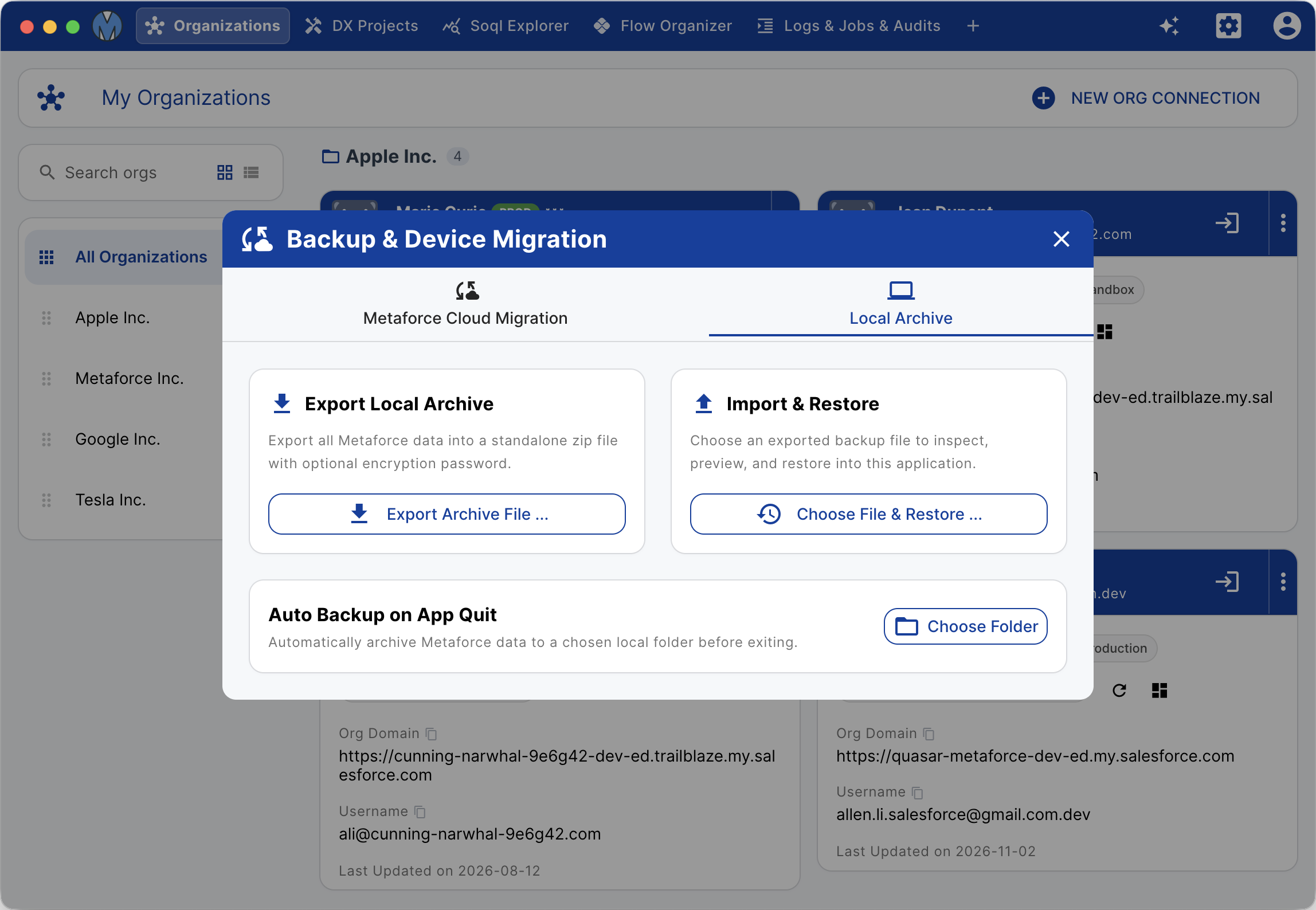
Export Local Archive
Click Export Archive File... to bundle all Metaforce connections, projects, and queries into a standalone encrypted or unencrypted .zip file on your local drive.
Import & Restore
Click Choose File & Restore... to select any previously exported .zip backup file from your disk. Metaforce verifies the archive integrity, prompts for a password if encrypted, and loads the preview screen.
Automated Backup on App Quit
Never worry about forgetting to back up:
- Under Auto Backup on App Quit, click Choose Folder.
- Select a secure directory (such as an external drive or a cloud-synced folder like iCloud Drive, Google Drive, or OneDrive).
- Whenever you exit Metaforce, the app automatically generates a timestamped snapshot (e.g.
Metaforce_Backup_2026_11_02_191816.zip). You can modify or remove the auto-backup directory at any time.
3. Restore Modes & Conflict Resolution
Whenever you restore data from Cloud or Local archives, Metaforce prevents accidental overwrites with an interactive preview:
Backup Inspection Summary
Metaforce opens the Restore & Migration Preview modal showing:
- Archive file size and creation timestamp.
- Total Org connections inside the backup vs current local connections.
- Clear indicators showing
+X new Org(s)and matching existing organizations.
Choose Your Restore Mode:
- Merge with Local Data Recommended:
Preserves all existing Org connections currently configured on this device, and cleanly adds new Orgs, queries, and preferences from the backup. - Full Clean Overwrite Destructive:
Completely resets and replaces all local data with the contents of the backup archive. Any local connections that do not exist in the backup will be removed.