
Metadata Search
Metaforce Metadata Search is a local full-text XML search engine, metadata cache explorer, and live code inspector for your Salesforce organizations. Unlike the Salesforce Tooling API—which often has blind spots for Flow formulas, dynamic SOQL strings, and Custom Labels—Metadata Search retrieves your org's metadata XML files locally via the SOAP Metadata API and indexes them on disk for 100% detection accuracy, sub-second search, and zero API consumption during search.
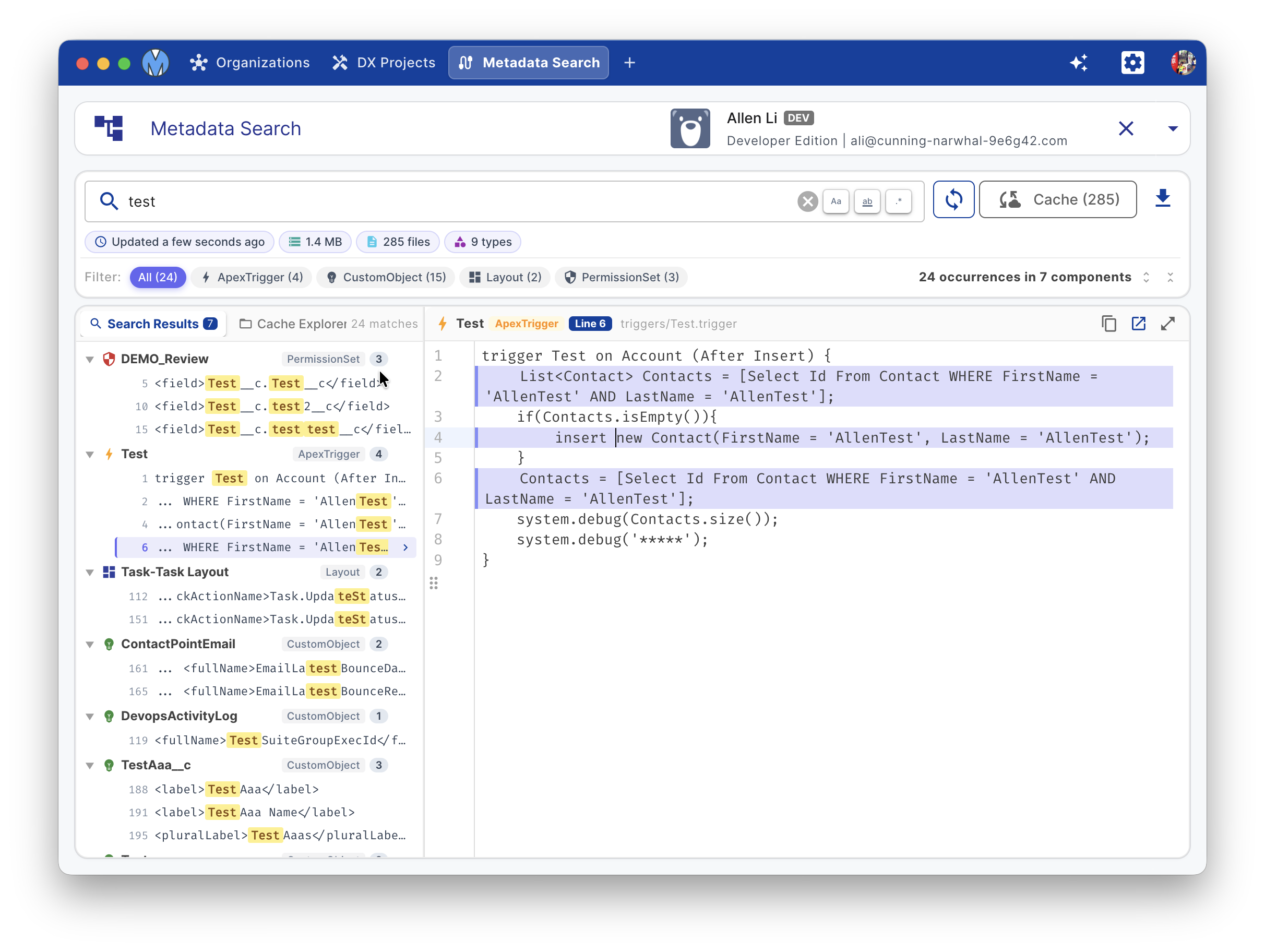
Core Capabilities
- Zero API Blind Spots: Searches directly across raw XML and source files so references inside Flow formulas, dynamic SOQL, Custom Labels, Layouts, Validation Rules, and Agentforce configurations are never missed.
- 50+ Supported Metadata Types: Covers Automation, Data Model, UI & Pages, Security, Integration, Rules & Routing, Templates, and AI & Agentforce metadata, while automatically excluding third-party installed package namespaces.
- Fast Local Full-Text Search: Instant matching with Match Case (
Aa), Match Whole Word (ab), and Regular Expression (.*) toggles, plus faceted filtering by metadata type. - Incremental & Parallel Caching: Multi-worker background retrieval with a real-time Caching Command Center, automatic interruption recovery, and incremental sync that only fetches modified components and prunes deleted files.
- Dual-Mode Split-Pane Workspace: Switch seamlessly between Search Results and Cache Explorer in the left navigator while inspecting syntax-highlighted source code in the right Live Code Inspector.
- Direct Navigation & Reporting: Jump straight to any component in Salesforce, open it in a linked Metaforce DX Project, pop out the code viewer, or export impact analysis results to CSV.
Caching Org Metadata
Before running searches on an organization, retrieve and cache its metadata locally. Cached files are stored securely on your local disk (~/.metaforce/org_metadata_cache).
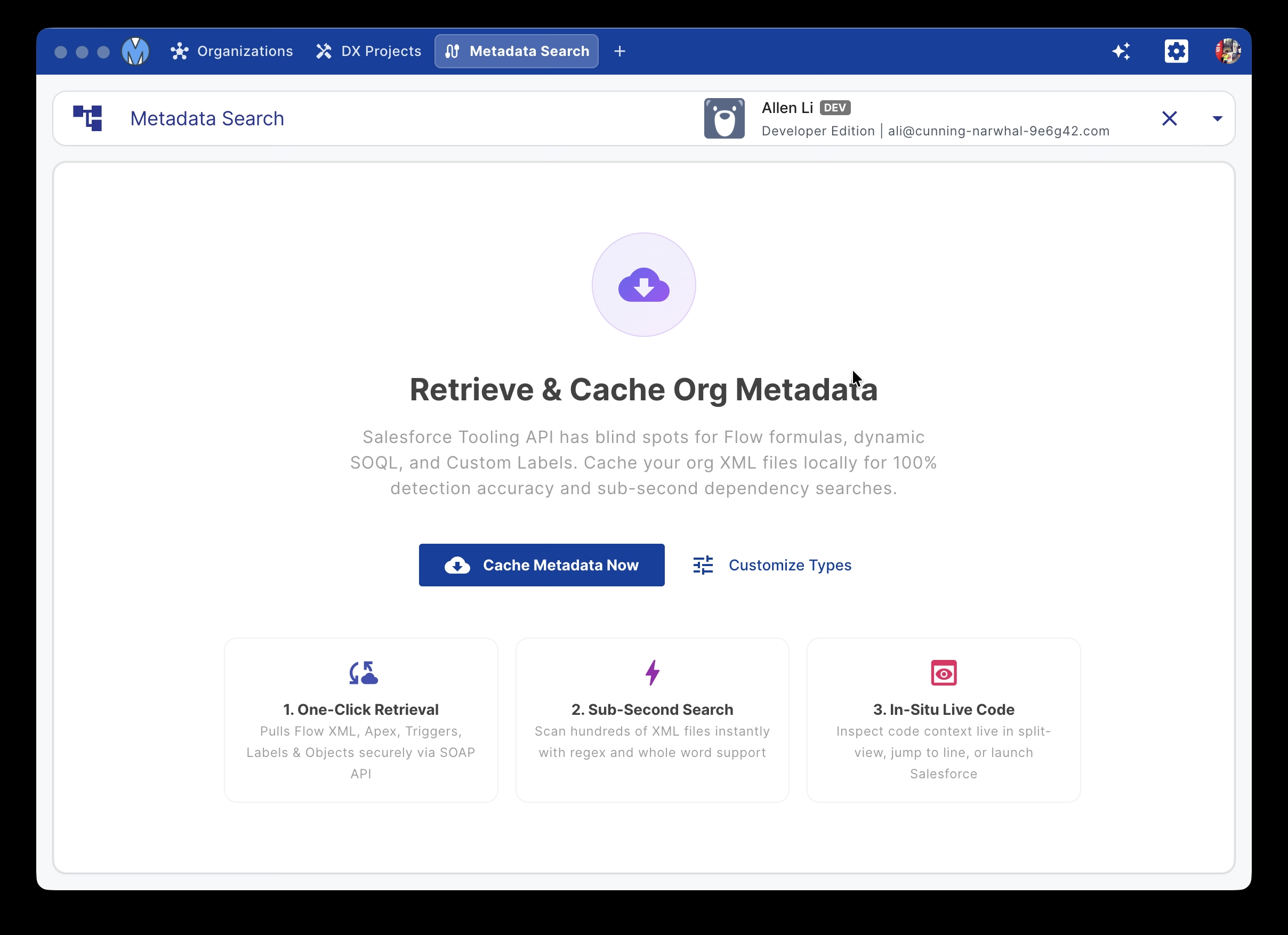
1. Select Metadata Types
Connect or select an organization from the top-right org selector, then click Cache Metadata Now (or the Cache button in the search ribbon) to open the Manage Local Metadata Cache dialog:
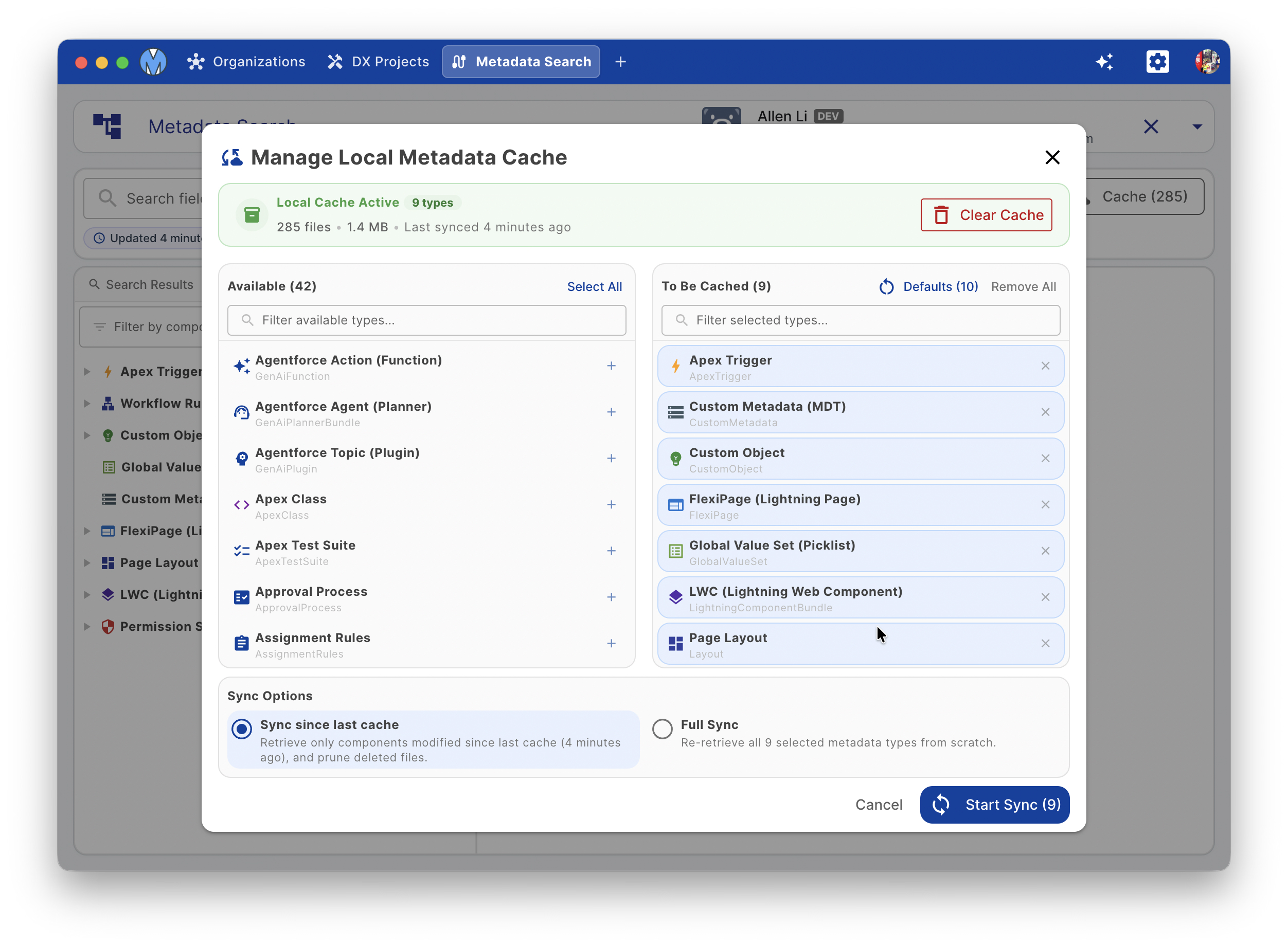
- Dual-Column Type Selector: Move metadata types between Available (left) and To Be Cached (right) with instant search filters in both columns.
- Quick Presets: Use Defaults to reset to the standard core development types, Select All to include every supported type, or Remove All to start fresh.
- Supported Categories:
- Automation:
Flow,ApexClass,ApexTrigger,Workflow,ApprovalProcess,FlowTest,ApexTestSuite - Data Model:
CustomObject(includes Custom Fields, Validation Rules, and Record Types),CustomLabel,GlobalValueSet,CustomMetadata,StandardValueSet - UI & Pages:
FlexiPage,Layout,LightningComponentBundle(LWC),AuraDefinitionBundle,ApexPage,ApexComponent,QuickAction,CustomTab,CustomApplication,Prompt,LightningMessageChannel - Security:
PermissionSet,PermissionSetGroup,CustomPermission,MutingPermissionSet,Profile,UserAccessPolicy,Group,Role - Integration:
NamedCredential,ExternalCredential,ExternalDataSource,ConnectedApp,RemoteSiteSetting,CspTrustedSite,CorsWhitelistOrigin,StaticResource,PlatformCachePartition - Rules & Routing:
AssignmentRules,AutoResponseRule,MatchingRule,DuplicateRule,EscalationRules - Templates:
EmailTemplate,Report - Agentforce & AI:
GenAiPromptTemplate,GenAiFunction,GenAiPlugin,GenAiPlannerBundle
- Automation:
2. Choose a Sync Mode
Once an initial cache exists, you can keep it up to date with three sync options:
- Sync since last cache (Incremental): Checks component modification timestamps to retrieve only items changed since the last sync, fetches any newly added types (marked with a
newbadge), and automatically prunes deleted files. You can also trigger this in one click using the Sync button in the top search ribbon. - Sync New Only: Appears when you add new metadata types to your selection—retrieves only the newly added types without re-checking already cached types.
- Full Sync: Re-retrieves all selected metadata types from scratch.
- Clear Cache: Permanently deletes the local cache for the current org.
3. Monitor in the Caching Command Center
Click Start Cache or Start Sync to launch parallel metadata retrieval in the Caching Command Center:
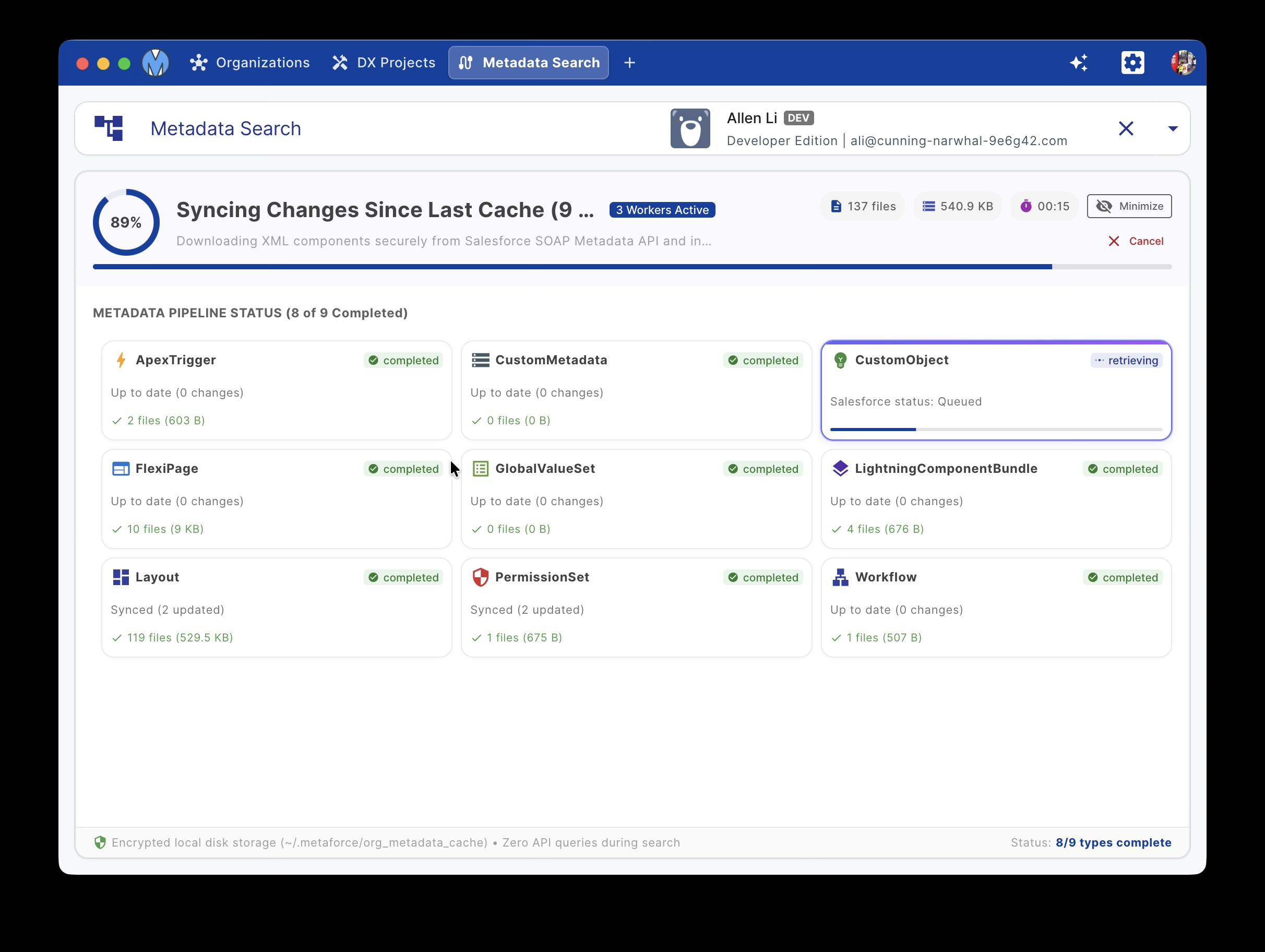
- Live Pipeline Progress: Tracks overall completion percentage, total files downloaded, cache size, elapsed time, and per-type status cards (
retrieving,extracting,completed,warning, orfailed). - Run in Background: Click Minimize (when an existing cache is present) to collapse the Command Center into a compact progress bar while you continue searching or browsing.
- Interruption Recovery: If Metaforce closes or restarts during a retrieval job, an Interrupted Job Recovery Banner appears on your next visit so you can Resume Remaining types or Restart All.
Searching & Impact Analysis
Once your org metadata is cached, the Search Command Ribbon sits at the top of the workspace:
- Instant Query Input: Enter any Field API Name, Apex Class, Flow Name, Custom Label, or dynamic SOQL fragment (e.g.,
Account_Number__corOrderService). - Search Modifiers:
Aa(Match Case): Enforce case-sensitive matching.ab(Match Whole Word): Match complete identifiers only..*(Regular Expression): Run regex patterns across XML and code files.
- Cache Status Pills: View Last Updated, Cache Size, File Count, and Types Count directly beneath the search bar. Click any pill to open the Cache Management dialog.
- Faceted Type Filters: Filter search results by clicking any metadata type chip (e.g.,
All,Flow,ApexClass,CustomObject,Layout) showing per-type occurrence counts. - Results Tree: Grouped by metadata component with match counts, line numbers, highlighted code snippets, Expand All / Collapse All controls, and a direct Open in Salesforce button on each component.
- Export Impact Analysis (CSV): Click the Export Results as CSV button in the top ribbon to download a structured report (
*_Impact_Analysis.csv) containingMetadata Type,Component Name,File Path,Line, andMatched Code.
Cache Explorer
Switch the left navigator tab to Cache Explorer to browse all locally cached metadata without running a search query:
- Hierarchical Tree Browser: Inspect cached components organized by metadata type, folder, and bundle (LWC, Aura, and Agentforce Planner bundles).
- Quick Component Filter: Filter the entire tree by component or file name, expand/collapse all nodes, or refresh the explorer view.
- Context Menu Actions: Right-click (or click the
⋮menu) on any component to:- Open in Salesforce: Launch the component directly in your connected org.
- Find References: Automatically populate the component name into the search bar and run a full-text reference search across the cache.
- Copy Name: Copy the component's API name to your clipboard.
- Reveal in Finder / Show in Explorer: Open the underlying cached XML or source file on your local machine.
Live In-Situ Code Inspector
Clicking any matched line in Search Results or any file in Cache Explorer loads it immediately in the right-hand Live Code Inspector:
- Automatic Line Jump & Highlight: Opens the file in a syntax-highlighted CodeMirror editor (synchronized with Light/Dark mode) and automatically scrolls to and highlights the matched line.
- Header Toolbar Actions:
- Copy Full Code: Copy the entire file content to the clipboard.
- Open in Salesforce: Open the metadata component in Salesforce Setup.
- Open in Project: When a local Metaforce DX Project is linked to the same org, jump directly to that file and line in the Project Code Editor.
- Popout Dialog: Expand the file into a resizable, full-screen-capable code viewer modal for deeper inspection.